
How It Works
Follow each step in Cards.
- Assignment is a responsibility decision, not merely availability matching.
- Do not dismiss Pressure just to make a signal disappear.
- 01
Confirm the Card outcome, required role or skill, team scope, and timing.
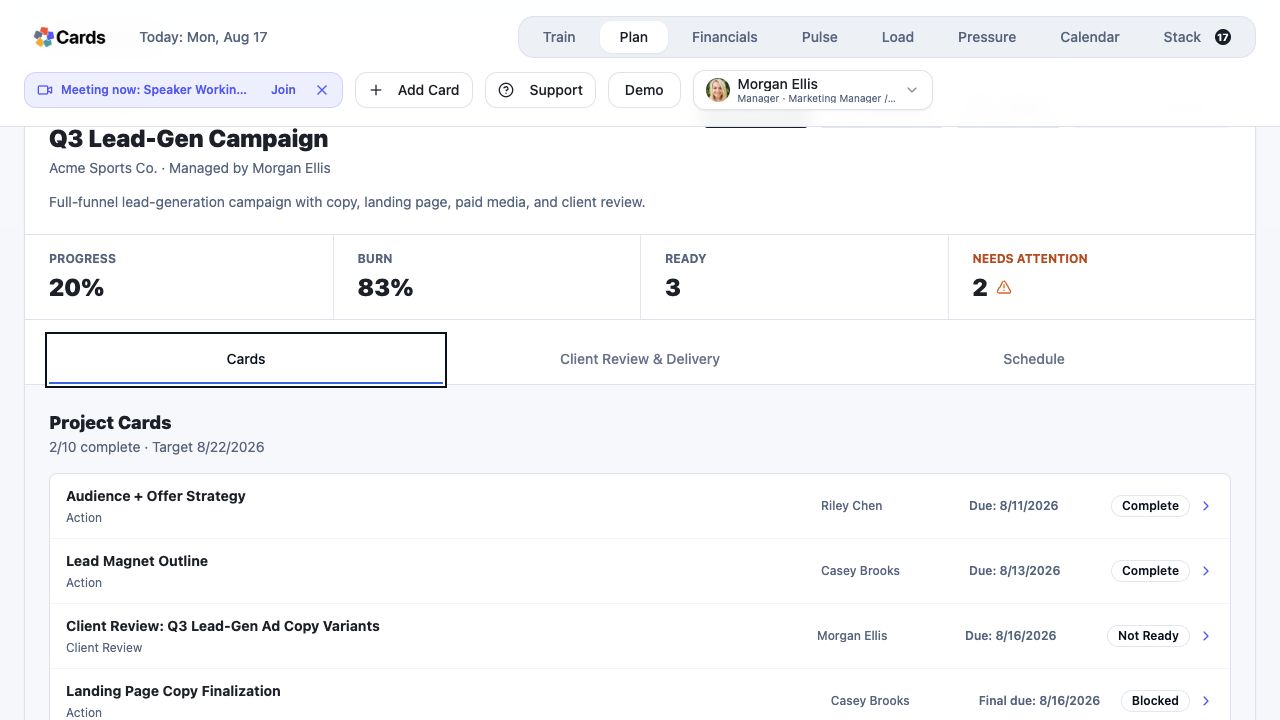 Confirm the Card, role, team, and timing
Step 1 screen focusConfirm the Card outcome, required role or skill, team scope, and timing. - 02
Review the eligible person’s current Load and other commitments.
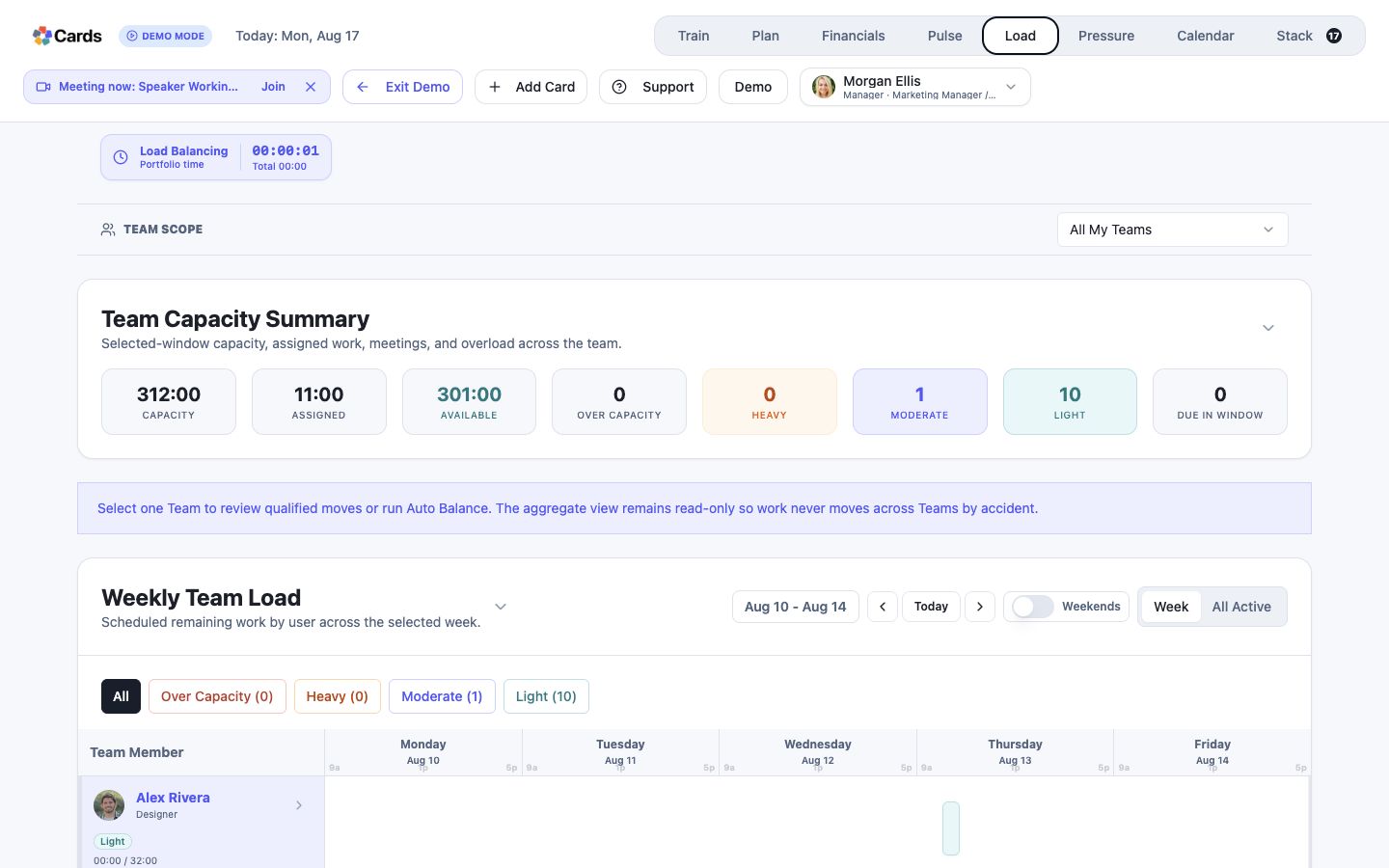 Review the person’s Load and other commitments
Step 2 screen focusReview the eligible person’s current Load and other commitments. - 03
Assign the Card through the supported Plan or Card workflow.
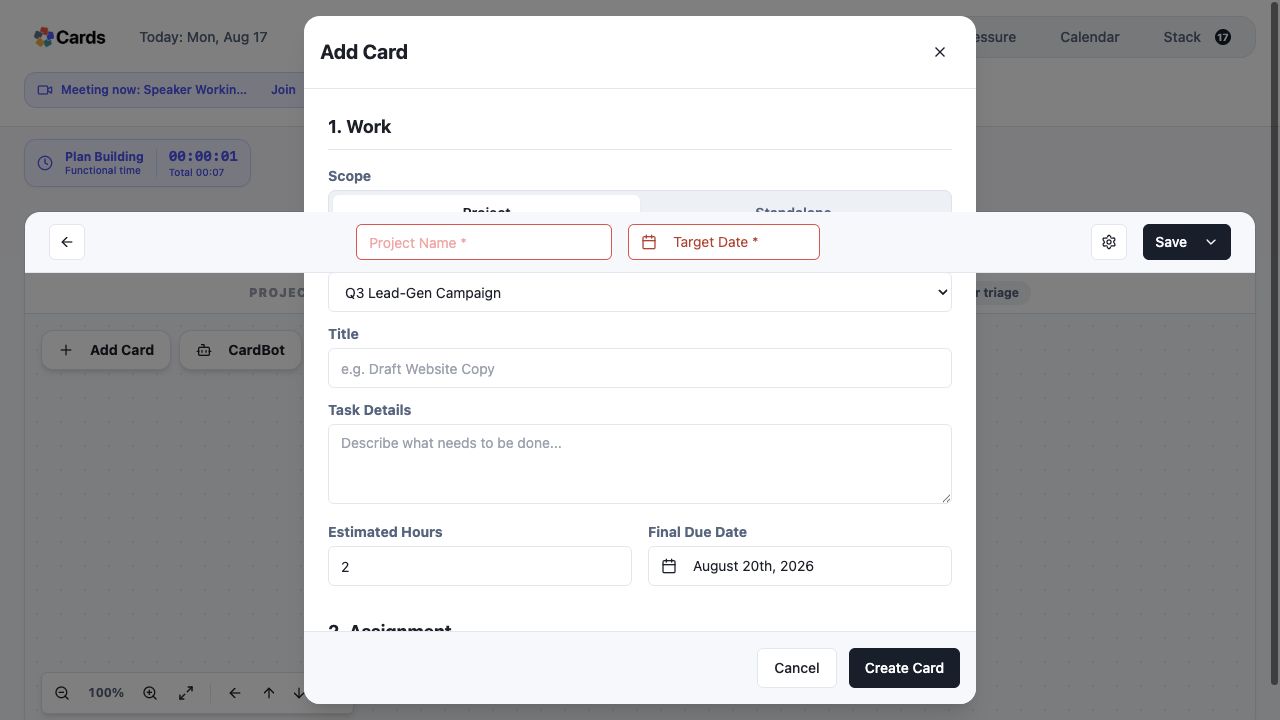 Assign the Card in the planning controls
Step 3 screen focusAssign the Card through the supported Plan or Card workflow. - 04
When Pressure shows a constraint, inspect the underlying evidence before intervening.
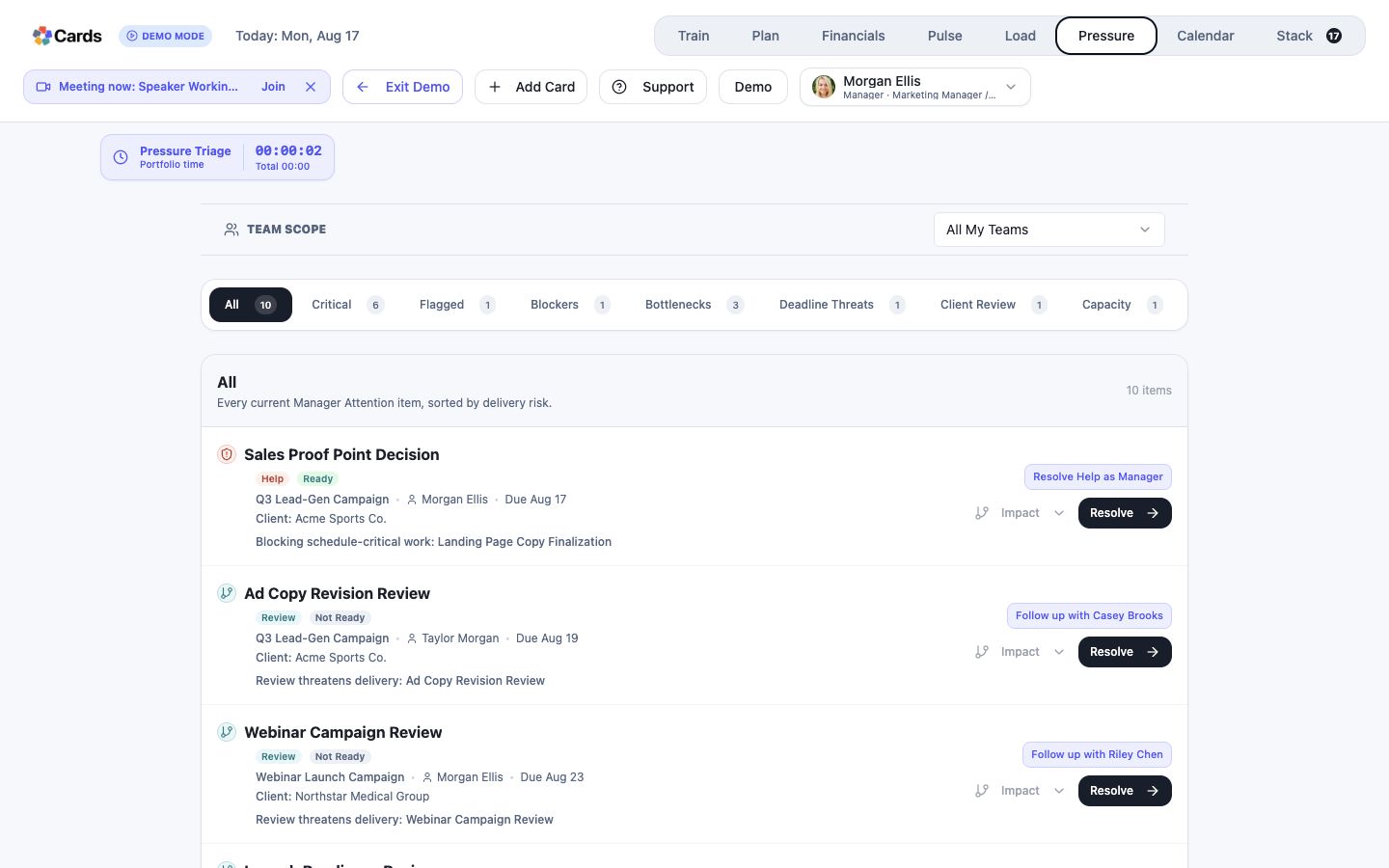 Open the evidence behind a Pressure signal
Step 4 screen focusWhen Pressure shows a constraint, inspect the underlying evidence before intervening. - 05
Record changes to ownership, scope, sequence, or timing so the Project history stays truthful.
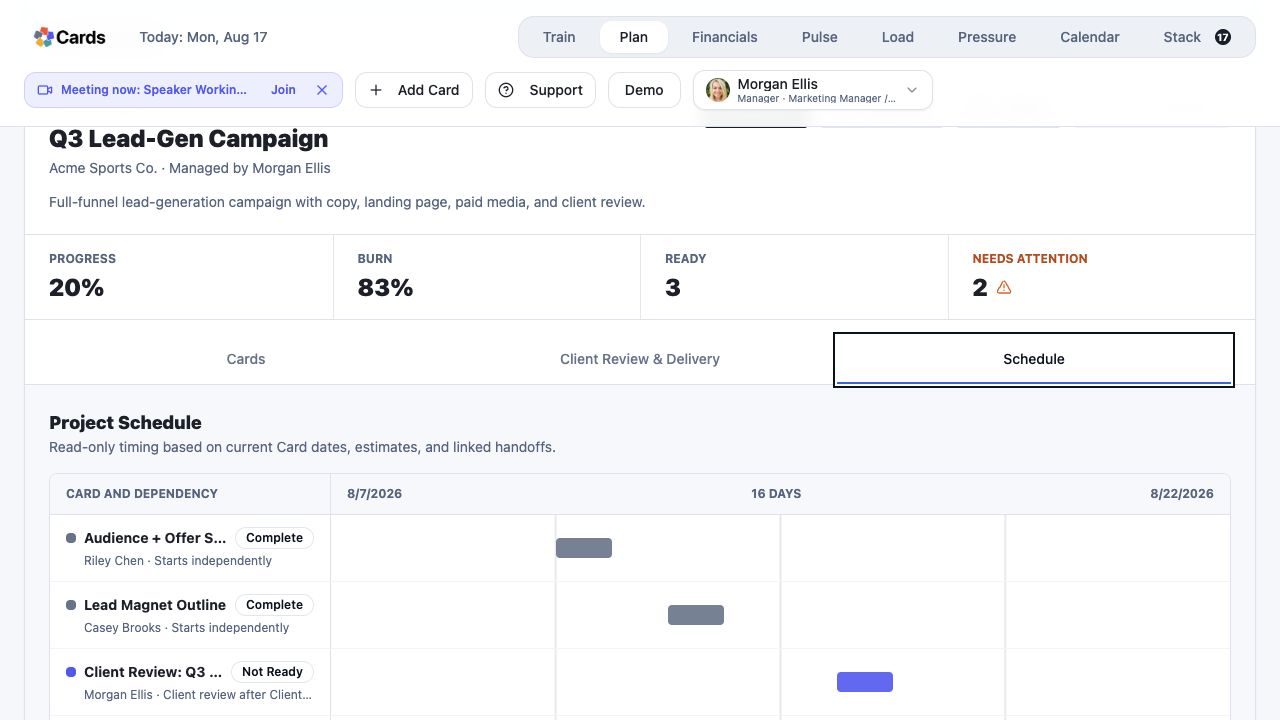 Keep ownership and timing changes visible in the Project
Step 5 screen focusRecord changes to ownership, scope, sequence, or timing so the Project history stays truthful.