
How It Works
Follow each step in Cards.
- Client-facing Cards must not expose private internal notes, assignments, or rates.
- Completion should mean the requested outcome is actually ready for its next step.
- 01
Confirm the Card’s stated outcome and completion criteria.
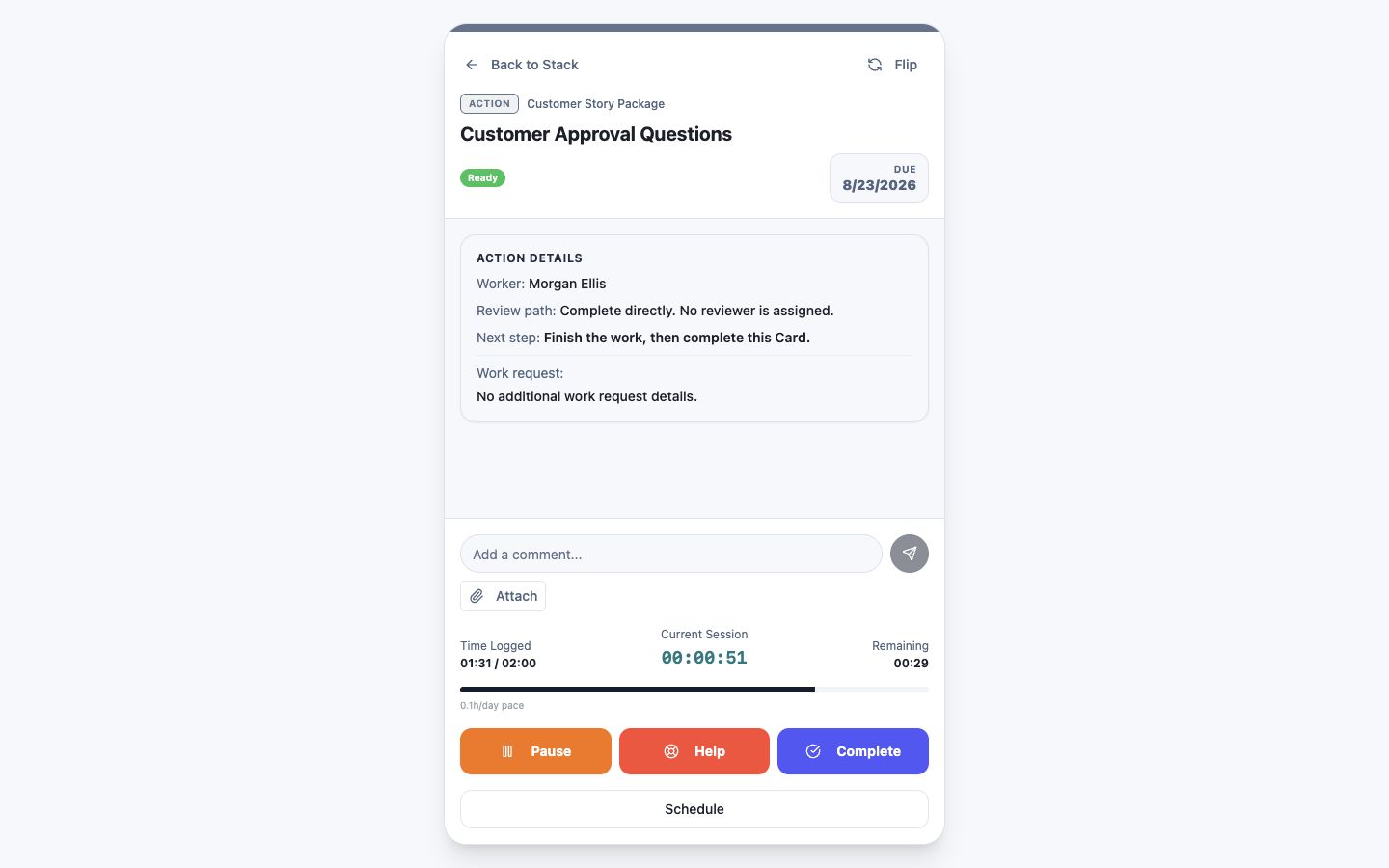 Confirm the requested outcome and criteria
Step 1 screen focusConfirm the Card’s stated outcome and completion criteria. - 02
Add the result, file, link, note, or other evidence needed by the next person.
Add the result and supporting evidenceStep 2 screen focusAdd the result, file, link, note, or other evidence needed by the next person. - 03
Use clear filenames and make sure the attachment is appropriate for the Card’s audience.
Check the attachment and its audienceStep 3 screen focusUse clear filenames and make sure the attachment is appropriate for the Card’s audience. - 04
Stop any active timer.
Pause the active sessionStep 4 screen focusStop any active timer. - 05
Select Complete and confirm the next connected Card becomes ready when expected.
Complete the Card when it is readyStep 5 screen focusSelect Complete and confirm the next connected Card becomes ready when expected.