
How It Works
Follow each step in Cards.
- Do not start a second timer to compensate for a display issue.
- If a timer does not recover, record the Card name and approximate start time before contacting Support.
- 01
Open the Action Card you are beginning and confirm it is the intended work.
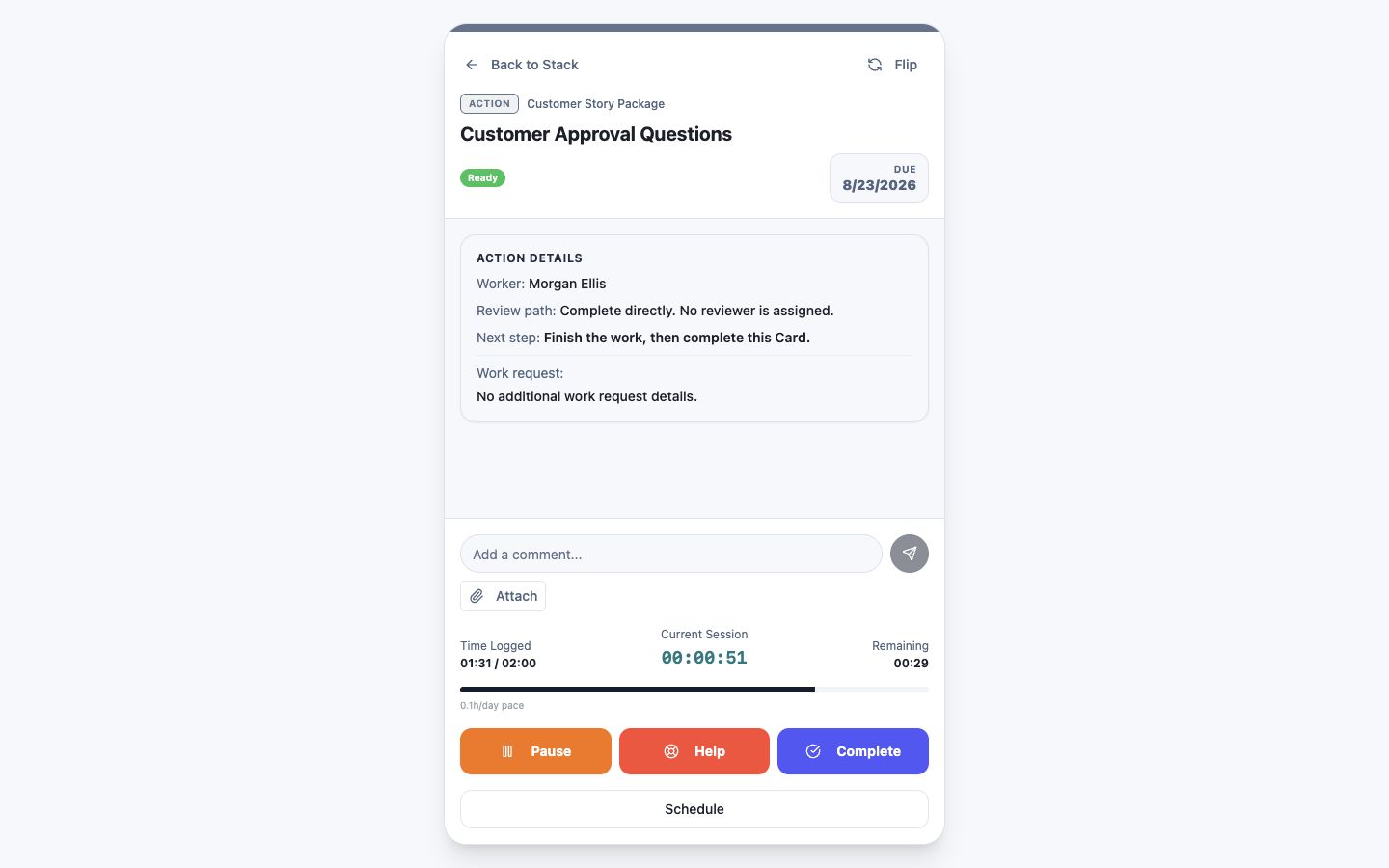 Confirm the Action Card
Step 1 screen focusOpen the Action Card you are beginning and confirm it is the intended work. - 02
Start or resume its timer and confirm the current session is advancing.
Watch the Current Session timerStep 2 screen focusStart or resume its timer and confirm the current session is advancing. - 03
Pause or stop the timer when you stop working on that Card.
Pause when you stop workingStep 3 screen focusPause or stop the timer when you stop working on that Card. - 04
Review recorded time in the Card and Calendar views.
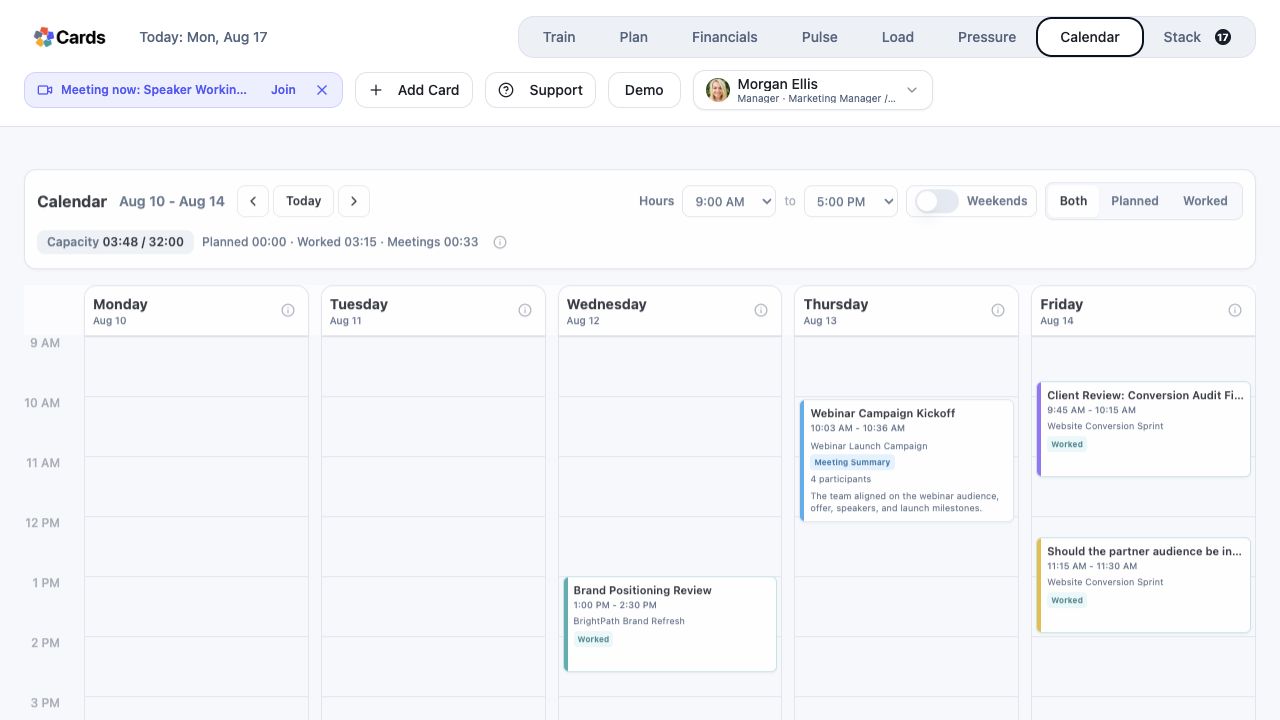 Review worked time and meetings in Calendar
Step 4 screen focusReview recorded time in the Card and Calendar views. - 05
After a reload or device change, allow Cards to restore the server-authoritative active timer.
Confirm the active session after returningStep 5 screen focusAfter a reload or device change, allow Cards to restore the server-authoritative active timer.