
How It Works
Follow each step in Cards.
- Use your own account rather than sharing credentials.
- If the expected organization is missing, ask an authorized Admin to verify your membership.
- 01
Open the Cards sign-in page and enter the email address associated with your organization. If you are new to Cards, choose Create an account.
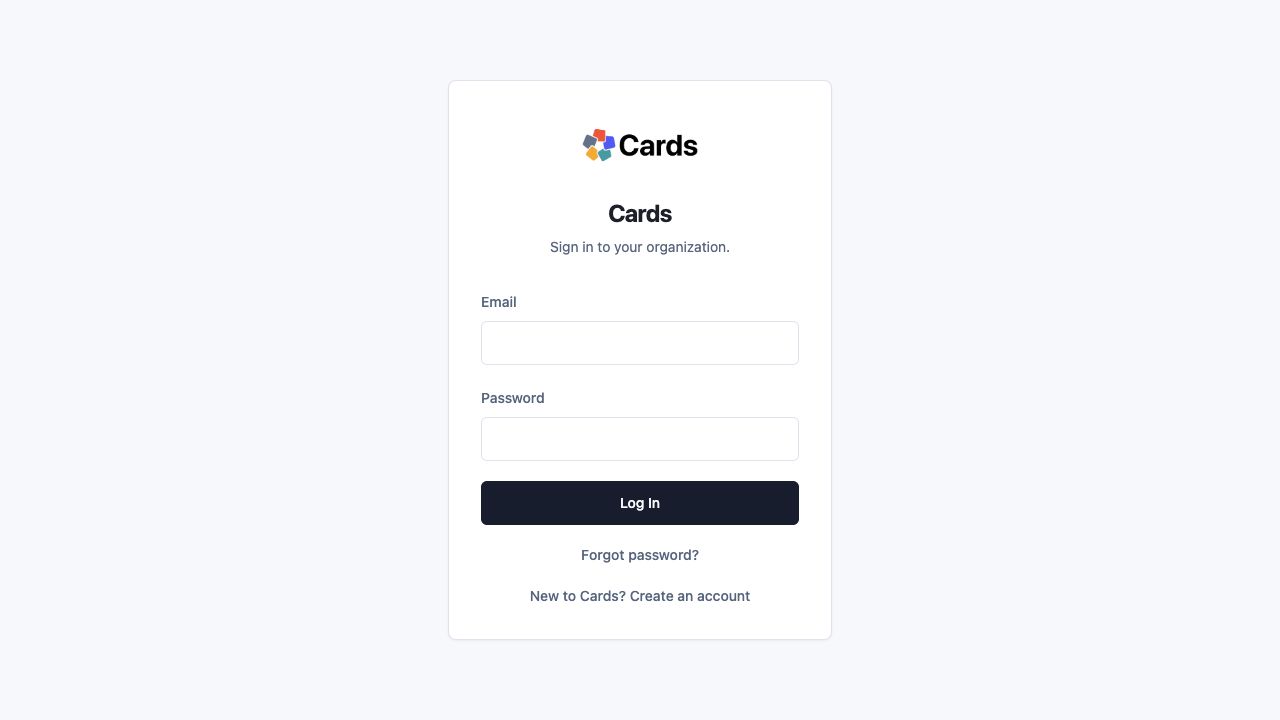 Sign in with your Cards email or create an account
Step 1 screen focusOpen the Cards sign-in page and enter the email address associated with your organization. If you are new to Cards, choose Create an account. - 02
After signing in, confirm the account and role shown in the header, then check the Team Scope for the work you are viewing.
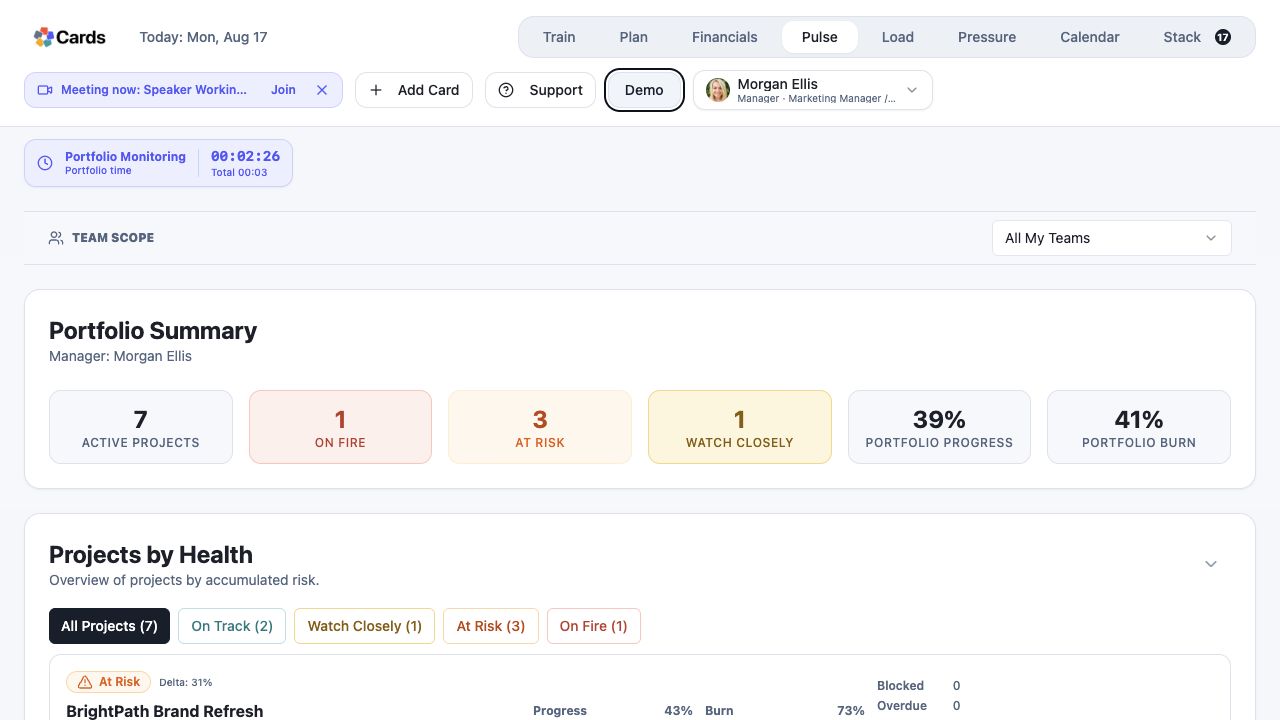 Confirm your account, role, and Team Scope
Step 2 screen focusAfter signing in, confirm the account and role shown in the header, then check the Team Scope for the work you are viewing. - 03
Open the account controls and choose My Profile. In Demo Mode, My Profile is inside the Demo menu.
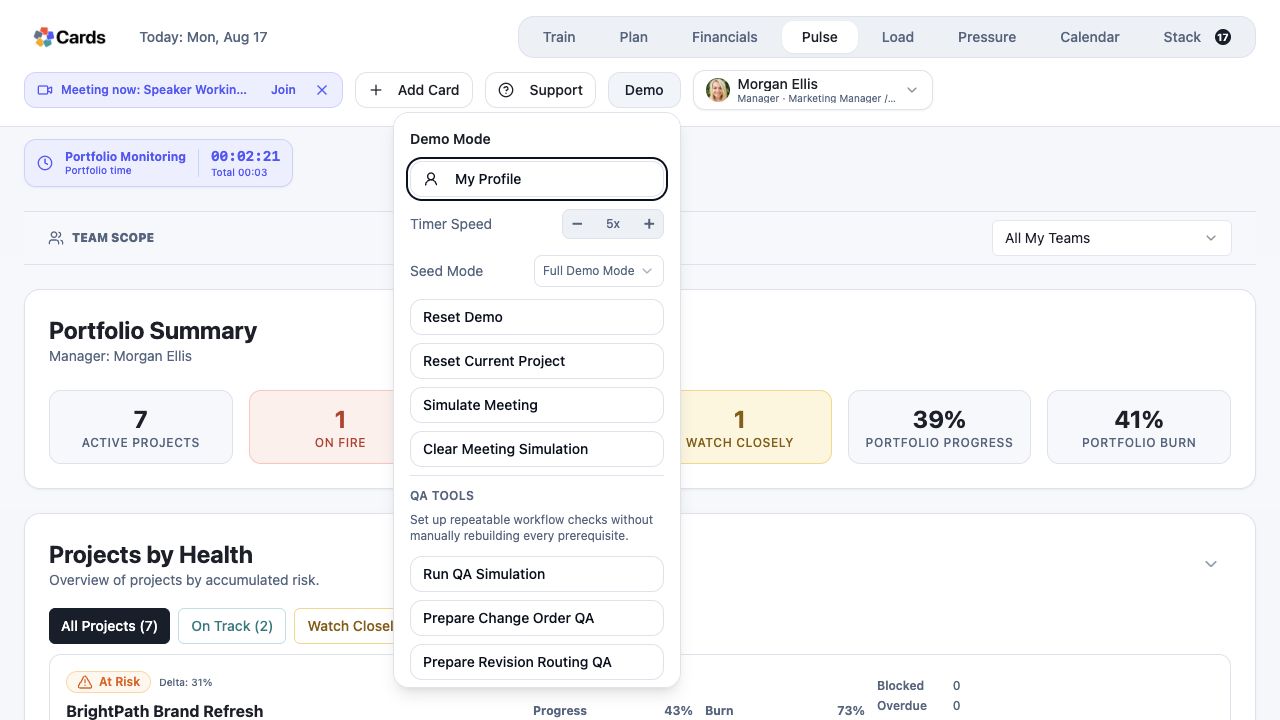 Open My Profile from the account controls
Step 3 screen focusOpen the account controls and choose My Profile. In Demo Mode, My Profile is inside the Demo menu. - 04
Review your display name, timezone, working hours, organization-managed role, title, and weekly capacity. Save changes only when the editable details are correct.
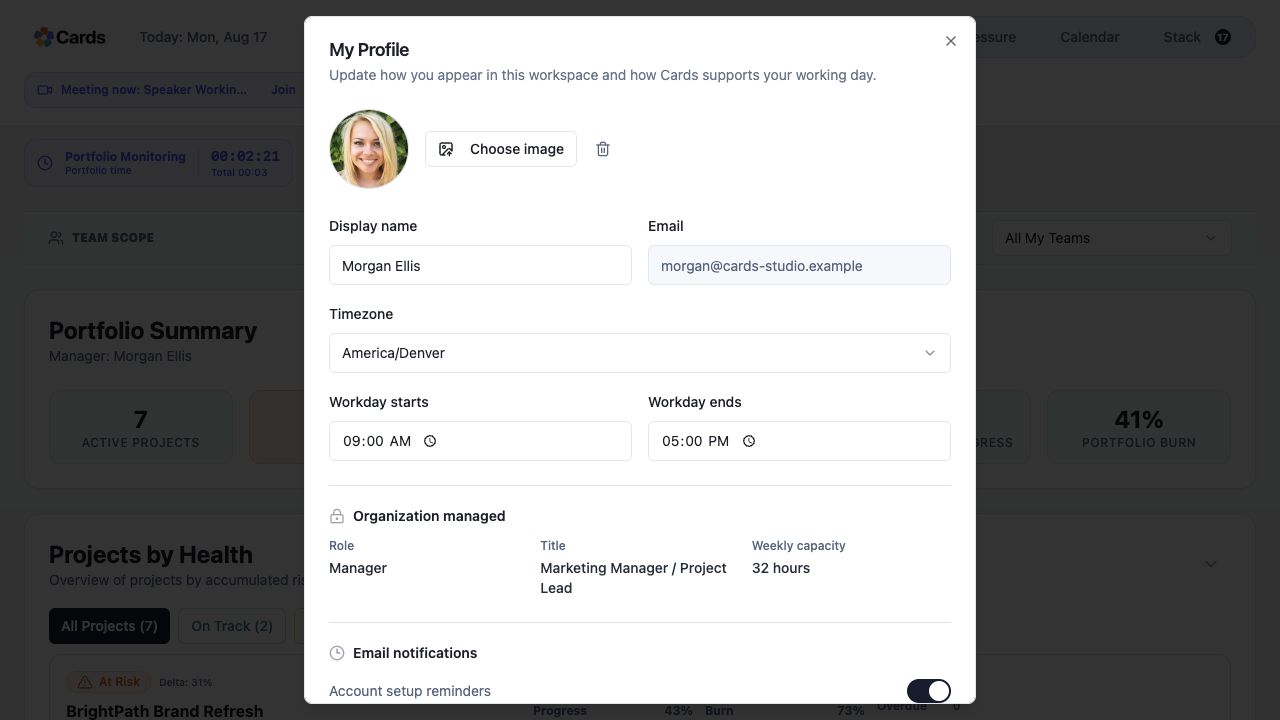 Review profile details and organization-managed access
Step 4 screen focusReview your display name, timezone, working hours, organization-managed role, title, and weekly capacity. Save changes only when the editable details are correct.