
How It Works
Follow each step in Cards.
- The linked Cards record remains the source of truth.
- Do not forward a message that appears to expose work outside your authorized scope.
- 01
Confirm the email address on your Cards account.
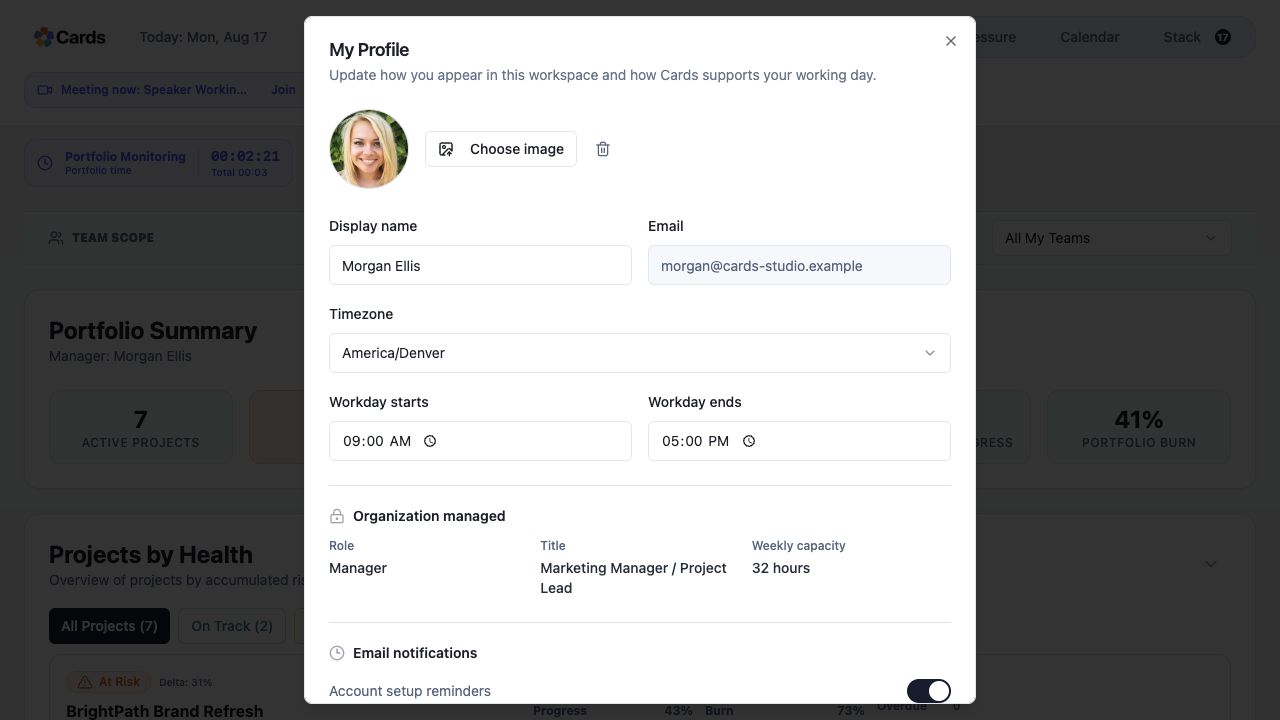 Confirm the email on My Profile
Step 1 screen focusConfirm the email address on your Cards account. - 02
Review organization membership, role, and notification settings.
Review the Email notifications switchesStep 2 screen focusReview organization membership, role, and notification settings. - 03
Check filtered, junk, or quarantine folders for the expected message.
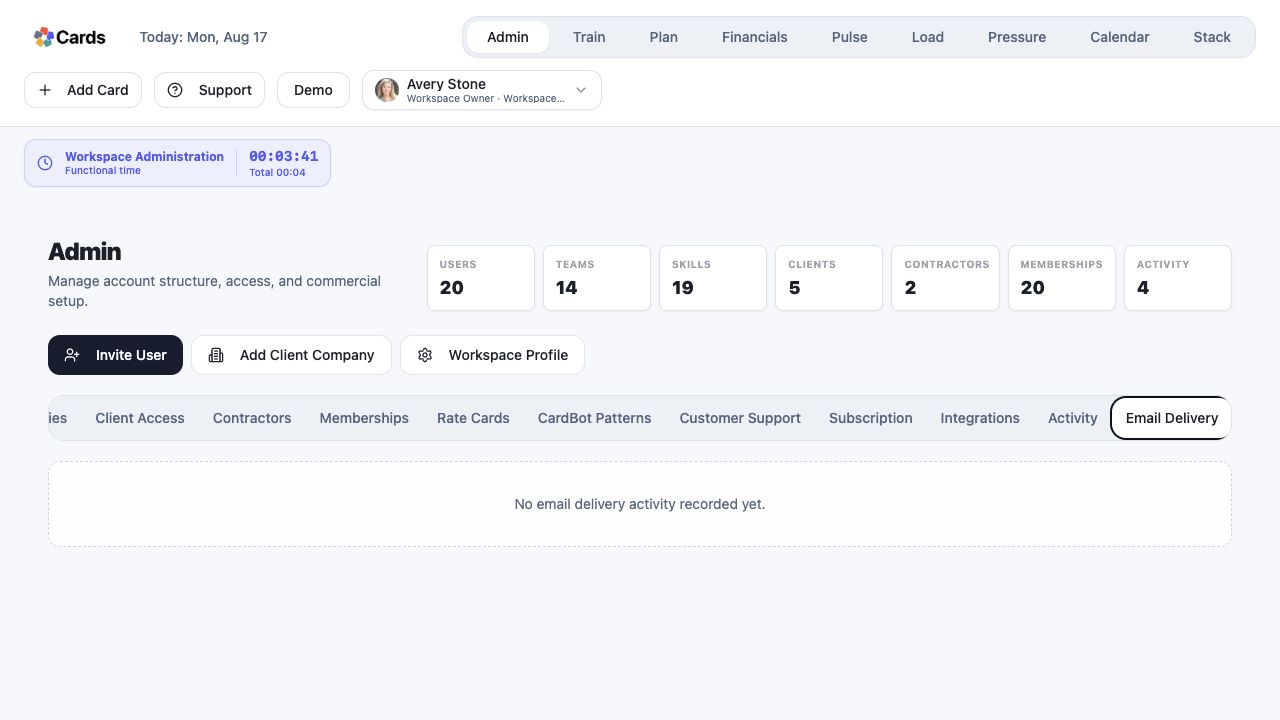 Admins can inspect Email Delivery activity
Step 3 screen focusCheck filtered, junk, or quarantine folders for the expected message. - 04
Open Cards directly and inspect the linked Project or Card rather than relying on an unfamiliar URL.
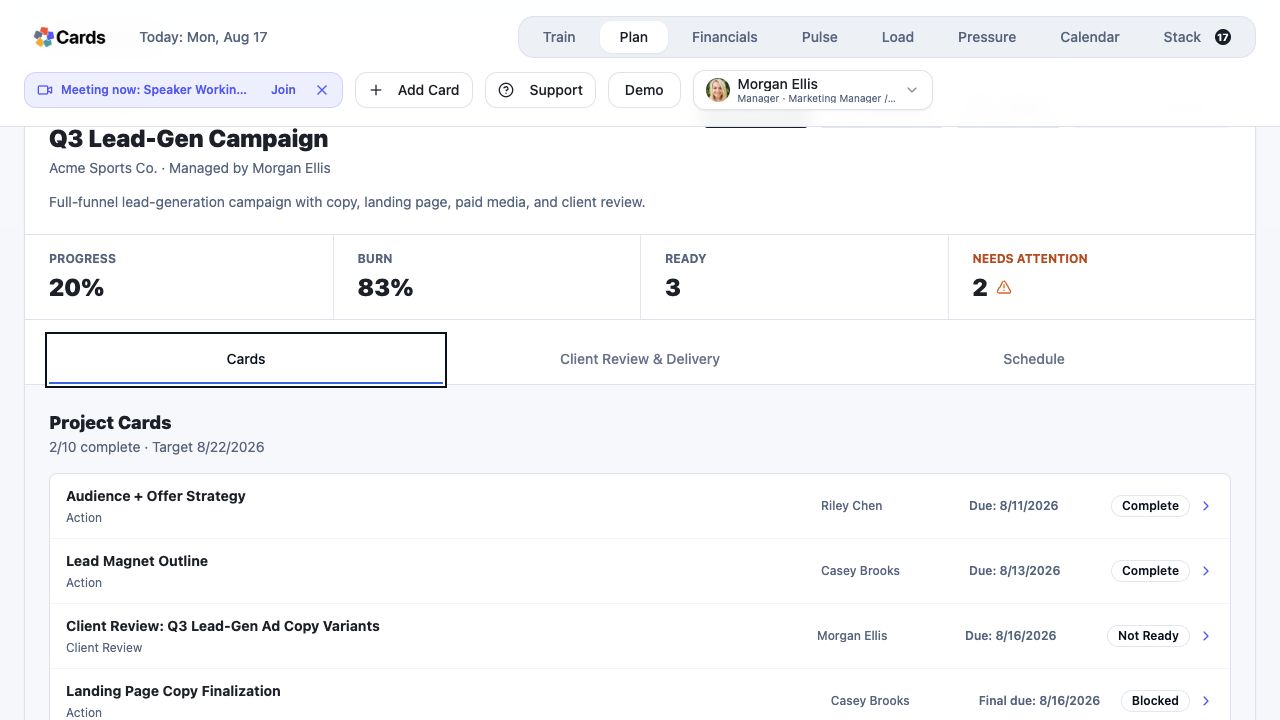 Open Cards directly and inspect the linked record
Step 4 screen focusOpen Cards directly and inspect the linked Project or Card rather than relying on an unfamiliar URL. - 05
Contact Support with the message type and approximate time if delivery remains incorrect.
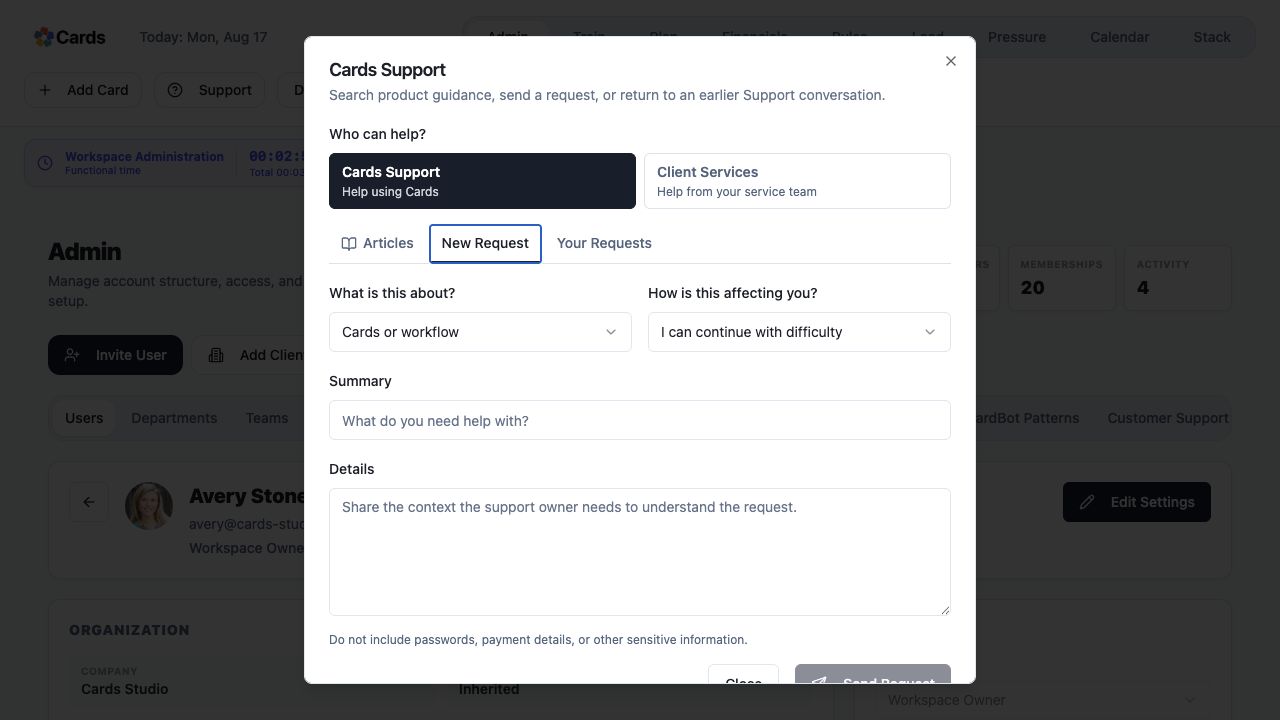 Report the message type and approximate time
Step 5 screen focusContact Support with the message type and approximate time if delivery remains incorrect.