
How It Works
Follow each step in Cards.
- Demo Mode data is isolated from your organization.
- Actions in Demo Mode are for learning and do not change live customer work.
- 01
Choose Demo Mode from the Cards entry experience or account controls.
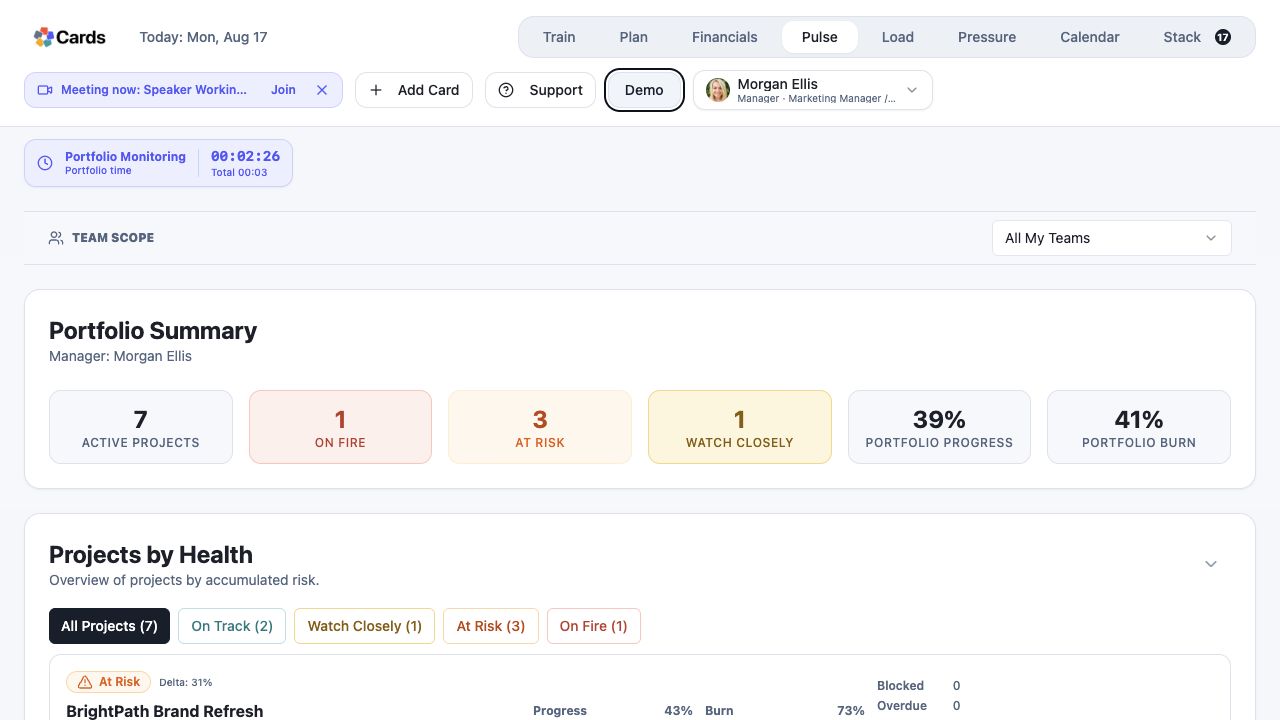 Select Demo from the workspace header
Step 1 screen focusChoose Demo Mode from the Cards entry experience or account controls. - 02
Select the Full Demo workspace when you want examples across roles and product areas.
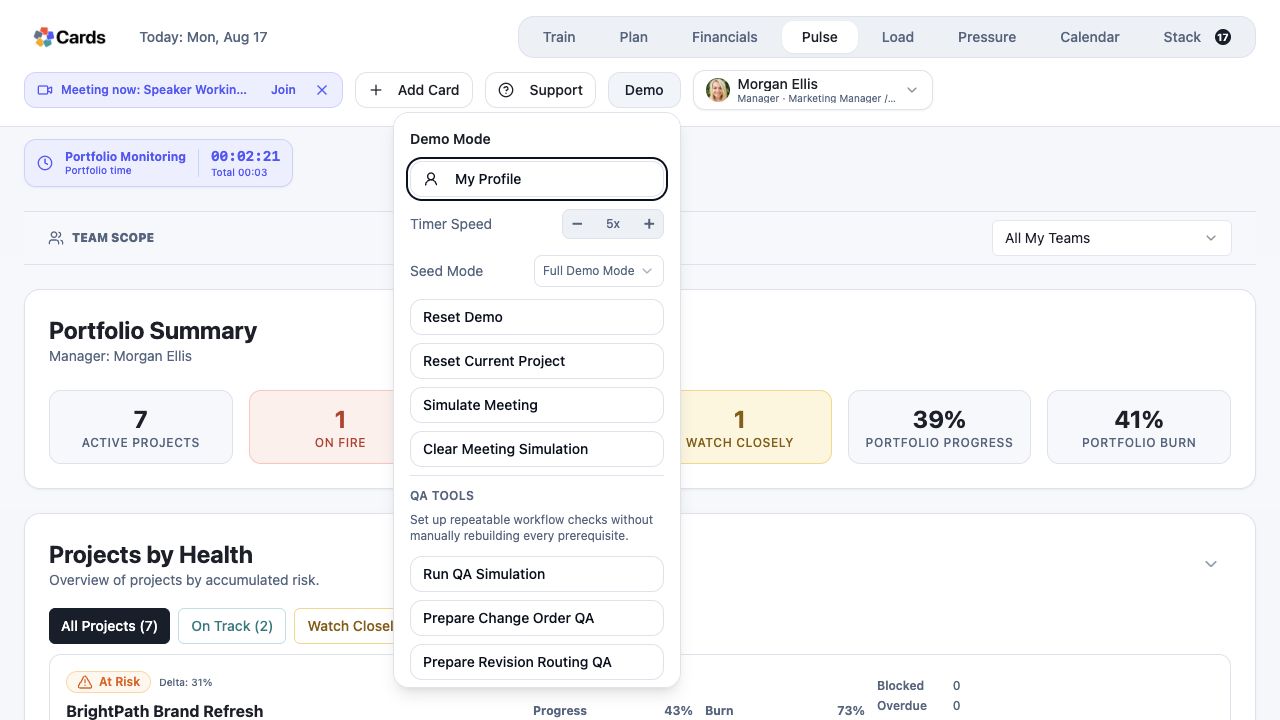 Confirm Full Demo Mode in Seed Mode
Step 2 screen focusSelect the Full Demo workspace when you want examples across roles and product areas. - 03
Use the demo-user switcher to understand how Worker, Manager, Client, and Admin experiences differ.
Use the demo-user selector to change rolesStep 3 screen focusUse the demo-user switcher to understand how Worker, Manager, Client, and Admin experiences differ. - 04
Open Stack, Plan, Pressure, Load, and other views and follow the sample work.
Explore Plan, Pulse, Load, Pressure, Calendar, and StackStep 4 screen focusOpen Stack, Plan, Pressure, Load, and other views and follow the sample work. - 05
Exit Demo when you are ready to return to your organization.
Use the Demo menu when you are ready to leave or resetStep 5 screen focusExit Demo when you are ready to return to your organization.