
How It Works
Follow each step in Cards.
- Use the minimum access needed.
- Do not remove a user before consequential work and ownership have been transferred.
- 01
Open the organization’s Admin or member controls.
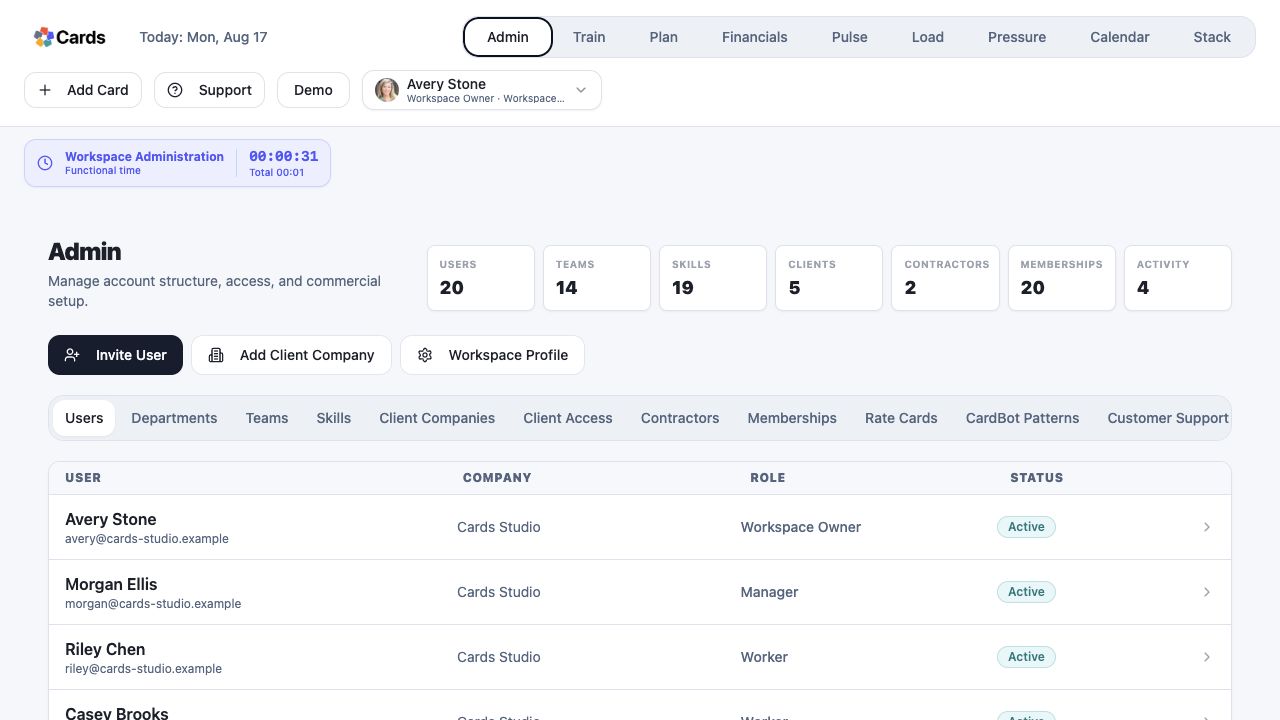 Open Admin Users
Step 1 screen focusOpen the organization’s Admin or member controls. - 02
Before inviting, confirm the email, role, team scope, and client association.
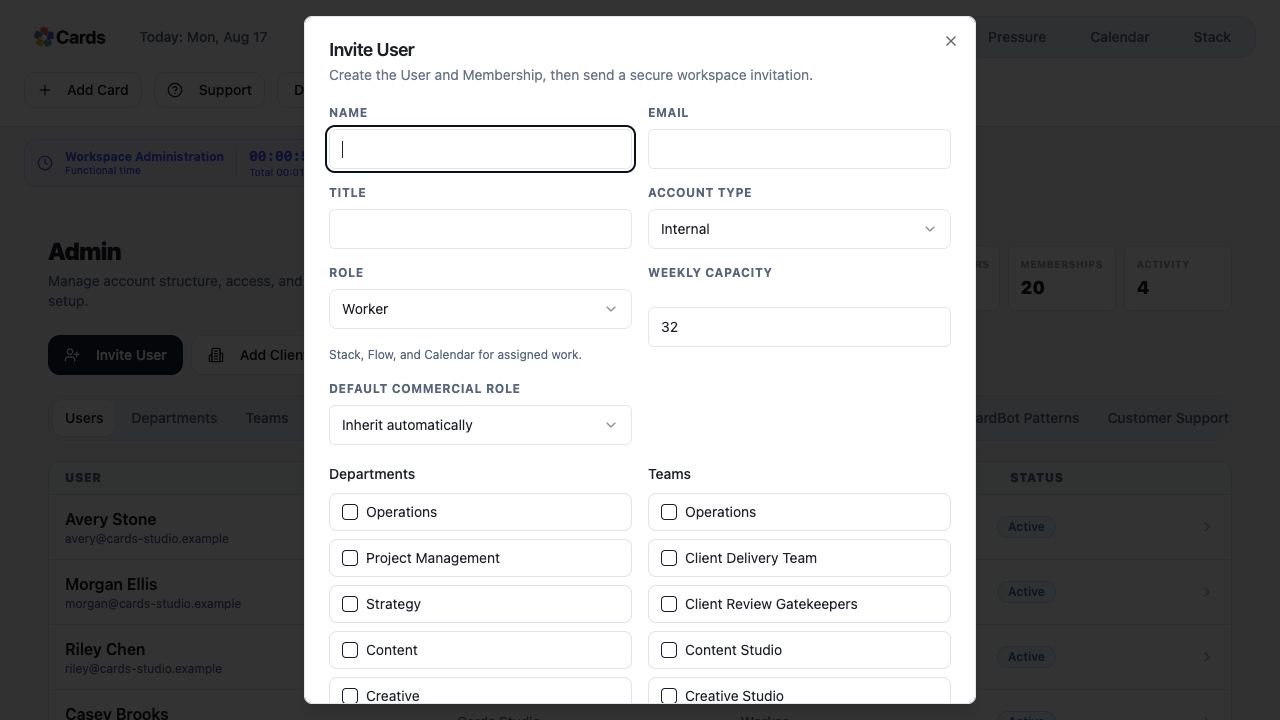 Set email, role, Teams, and capacity before inviting
Step 2 screen focusBefore inviting, confirm the email, role, team scope, and client association. - 03
Send the invitation and verify the person appears in the intended organization.
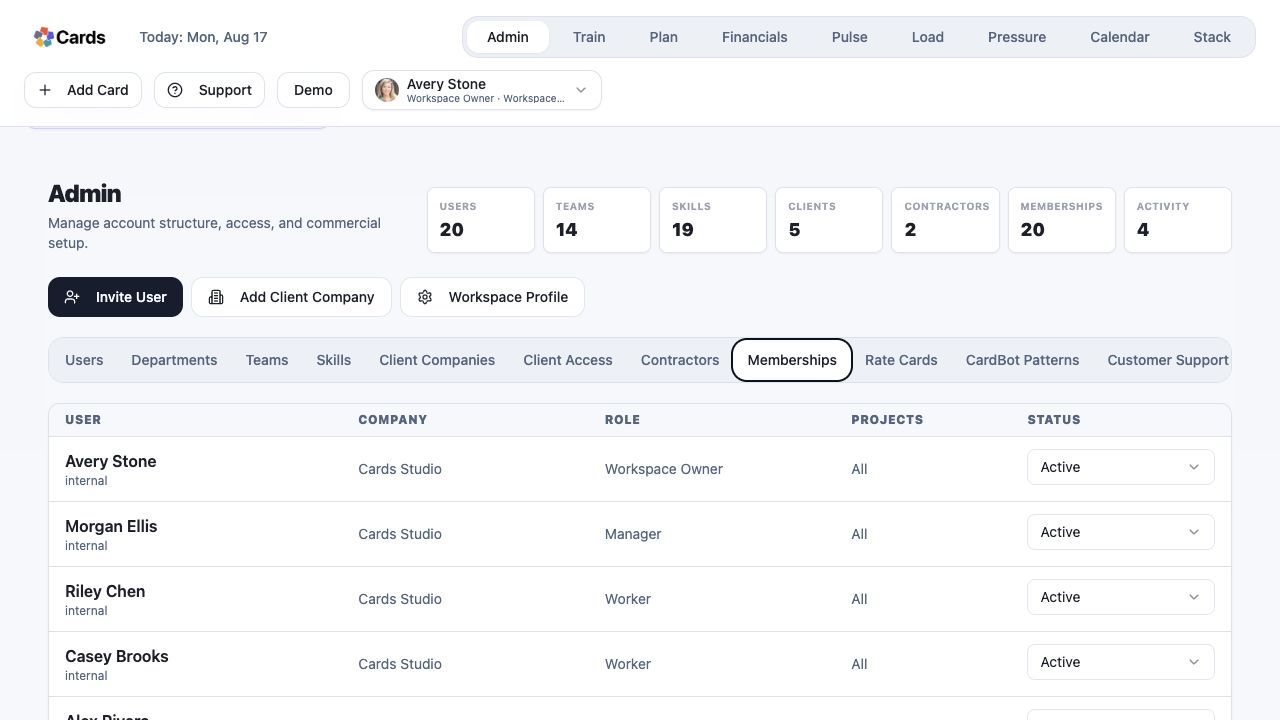 Verify the new Membership and status
Step 3 screen focusSend the invitation and verify the person appears in the intended organization. - 04
Before removing access, identify active assignments, approvals, and ownership that need reassignment.
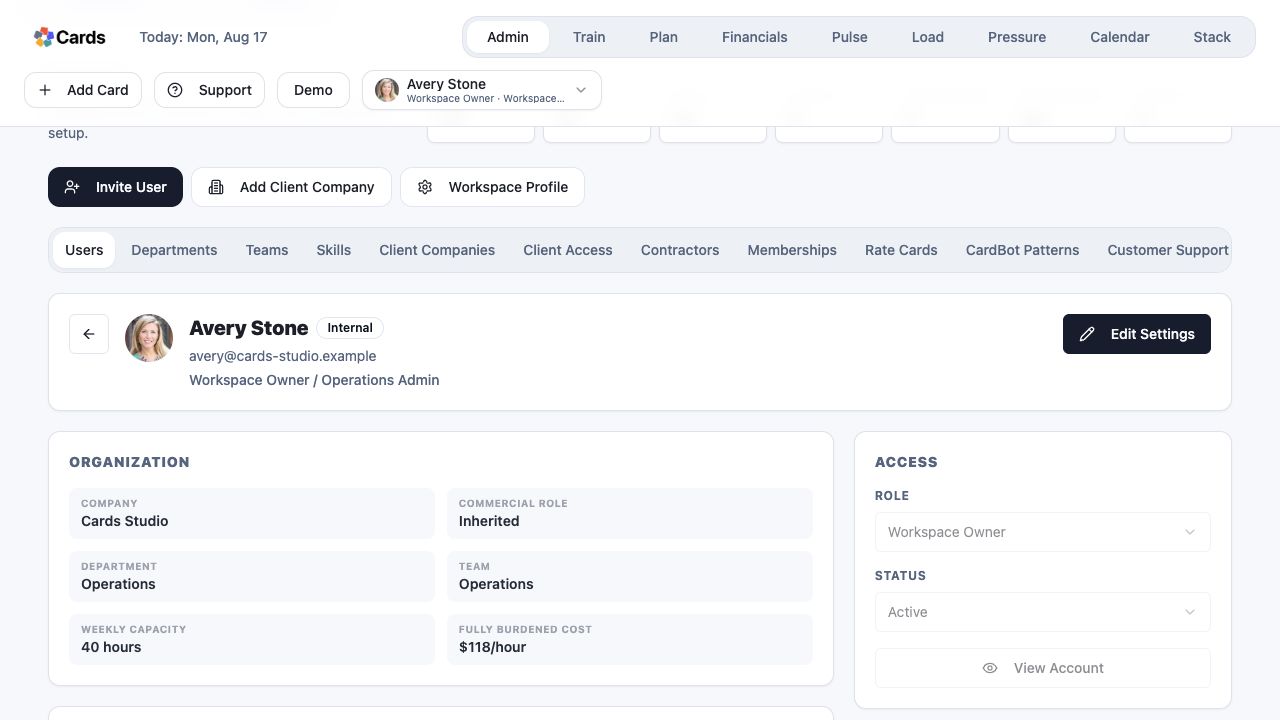 Review ownership and access before removing a user
Step 4 screen focusBefore removing access, identify active assignments, approvals, and ownership that need reassignment. - 05
Remove or deactivate the membership and confirm restricted work is no longer visible.
Confirm the Membership status after the changeStep 5 screen focusRemove or deactivate the membership and confirm restricted work is no longer visible.