
How It Works
Follow each step in Cards.
- Do not share private meeting links or transcripts in a public Support request.
- A browser permission or Zoom account issue may be separate from Cards meeting state.
- 01
Open Calendar and confirm the Meeting Card’s date, time, host, and participants.
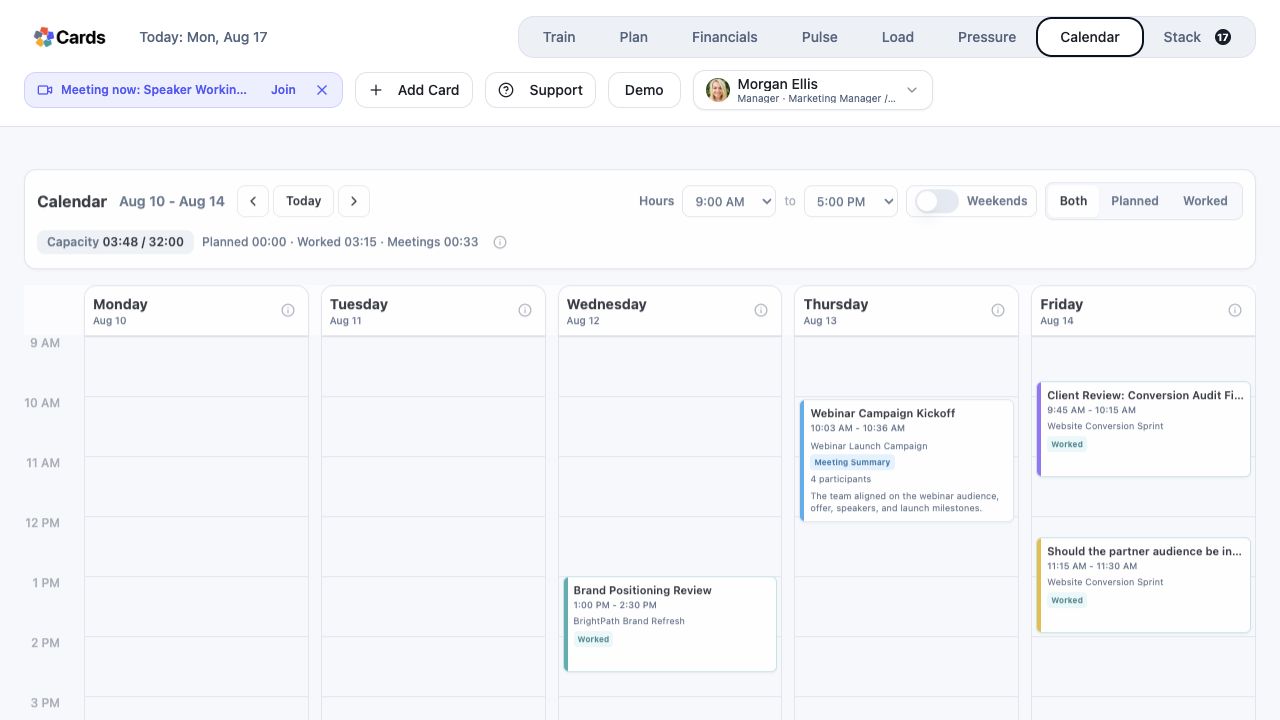 Open Calendar and locate the Meeting Card
Step 1 screen focusOpen Calendar and confirm the Meeting Card’s date, time, host, and participants. - 02
Open the Meeting Card and review its current state and join controls.
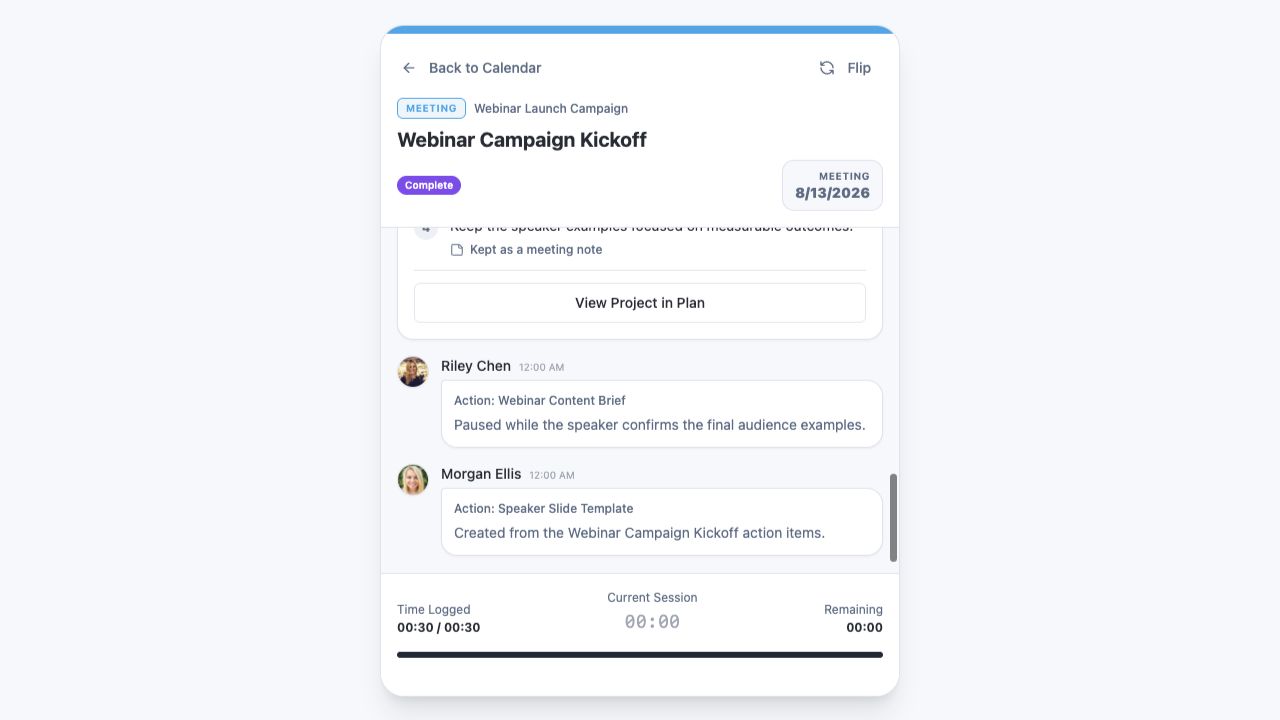 Review meeting time, participants, Zoom link, and state
Step 2 screen focusOpen the Meeting Card and review its current state and join controls. - 03
Confirm Zoom authorization or organization integration when the meeting requires it.
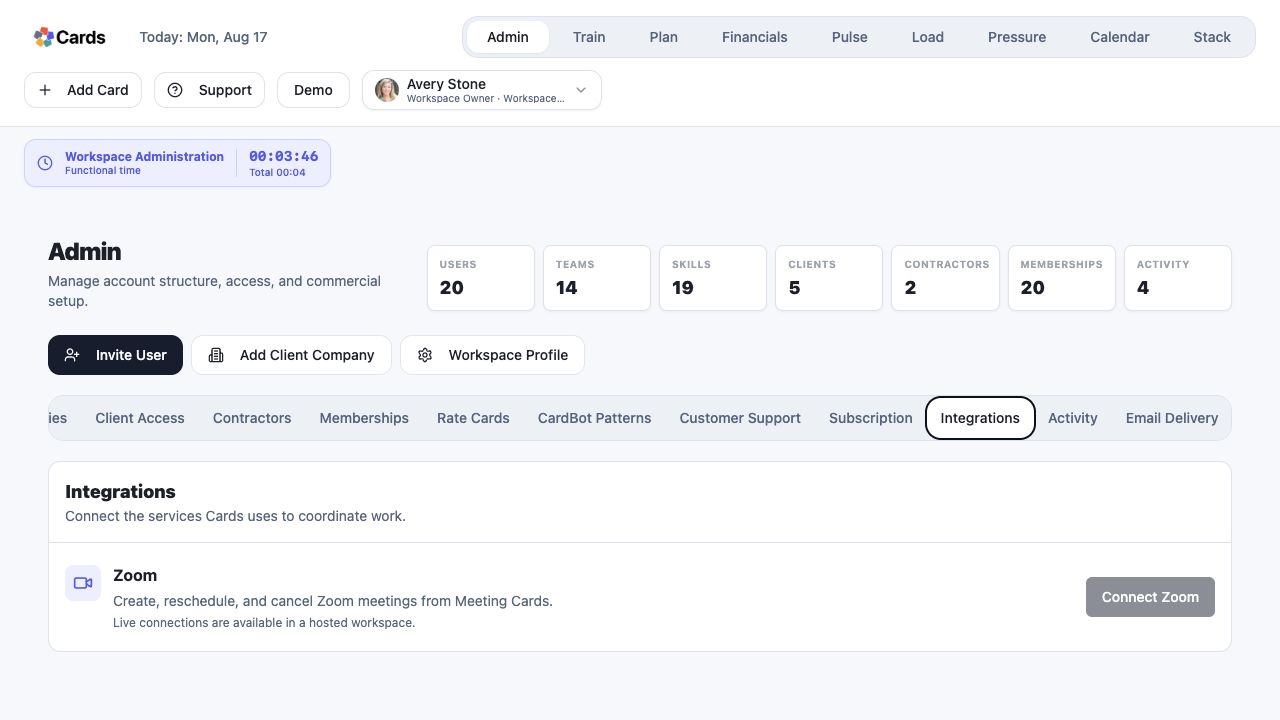 Admins review Zoom connection under Integrations
Step 3 screen focusConfirm Zoom authorization or organization integration when the meeting requires it. - 04
After the meeting, verify notes, transcript availability, and routed Action Cards as applicable.
Review meeting summary, decisions, and routed actionsStep 4 screen focusAfter the meeting, verify notes, transcript availability, and routed Action Cards as applicable. - 05
Contact Support with the Meeting name, time, and visible error if the issue continues.
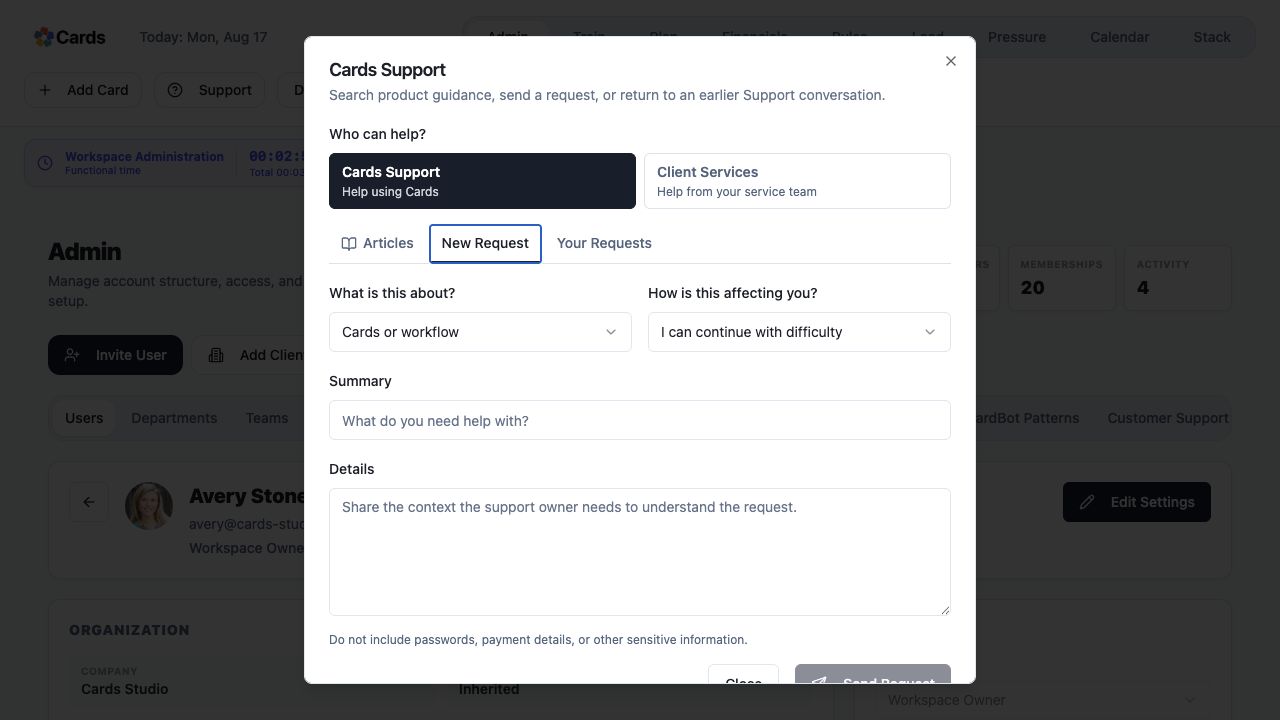 Send the Meeting name, time, and error to Support
Step 5 screen focusContact Support with the Meeting name, time, and visible error if the issue continues.