
How It Works
Follow each step in Cards.
- Do not recreate or duplicate work merely to make it appear.
- Avoid including restricted client or financial data in an unrestricted screenshot.
- 01
Confirm the active organization and demo or live-workspace state.
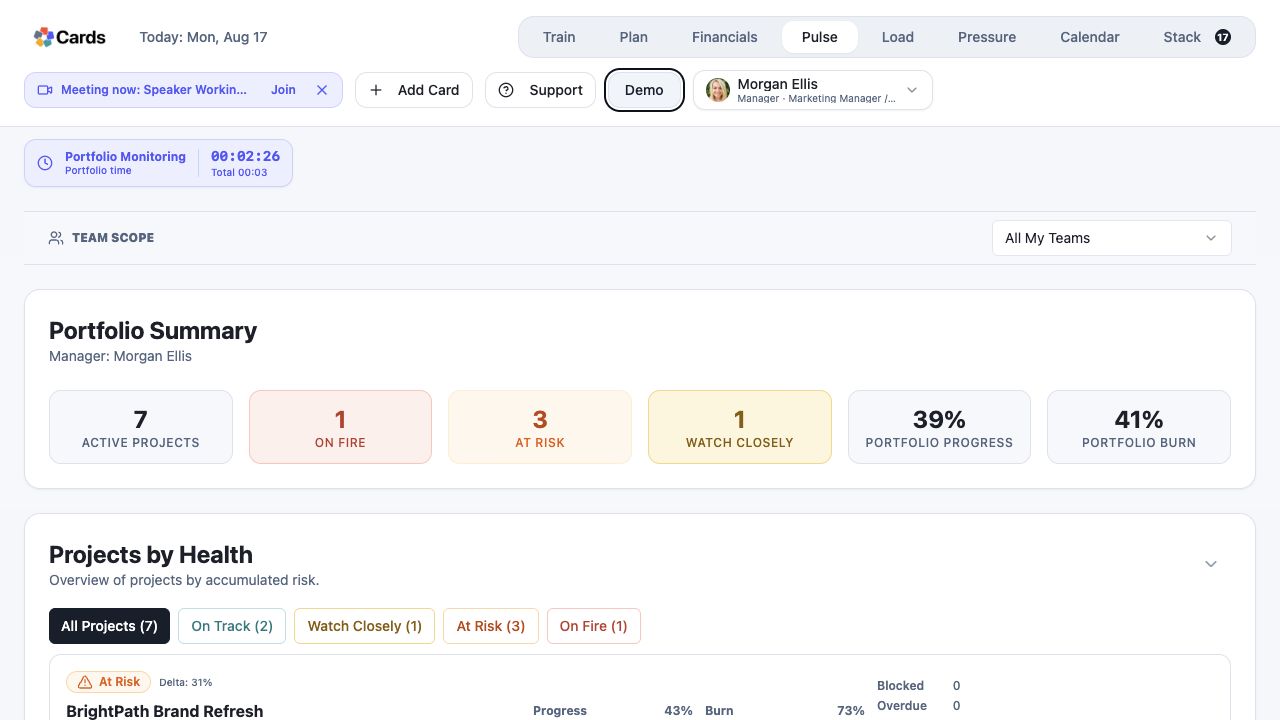 Confirm the user, role, and workspace state
Step 1 screen focusConfirm the active organization and demo or live-workspace state. - 02
Clear or review filters in the current view.
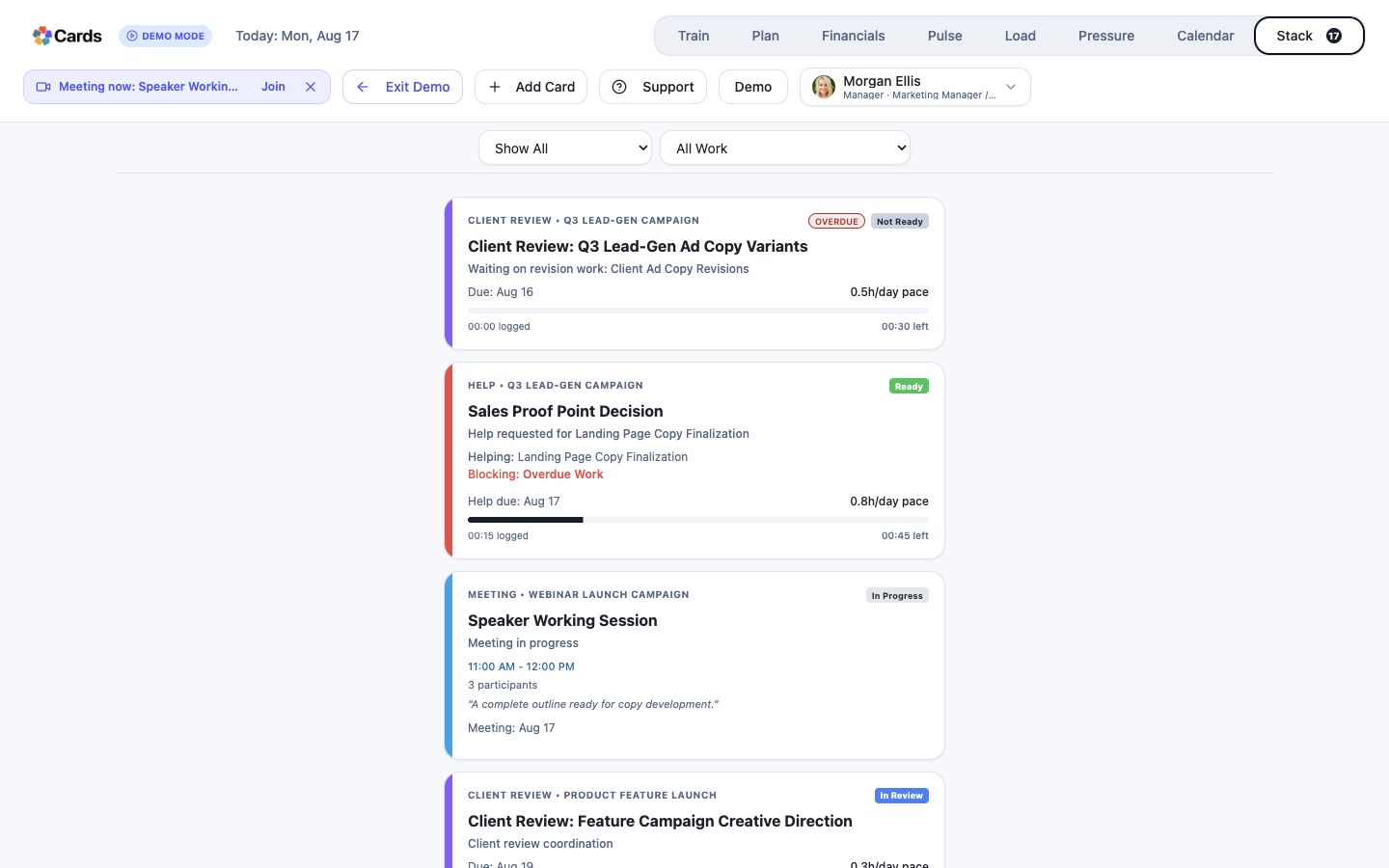 Review readiness and Project filters
Step 2 screen focusClear or review filters in the current view. - 03
Check assignment, team scope, Card readiness, dependencies, and date range.
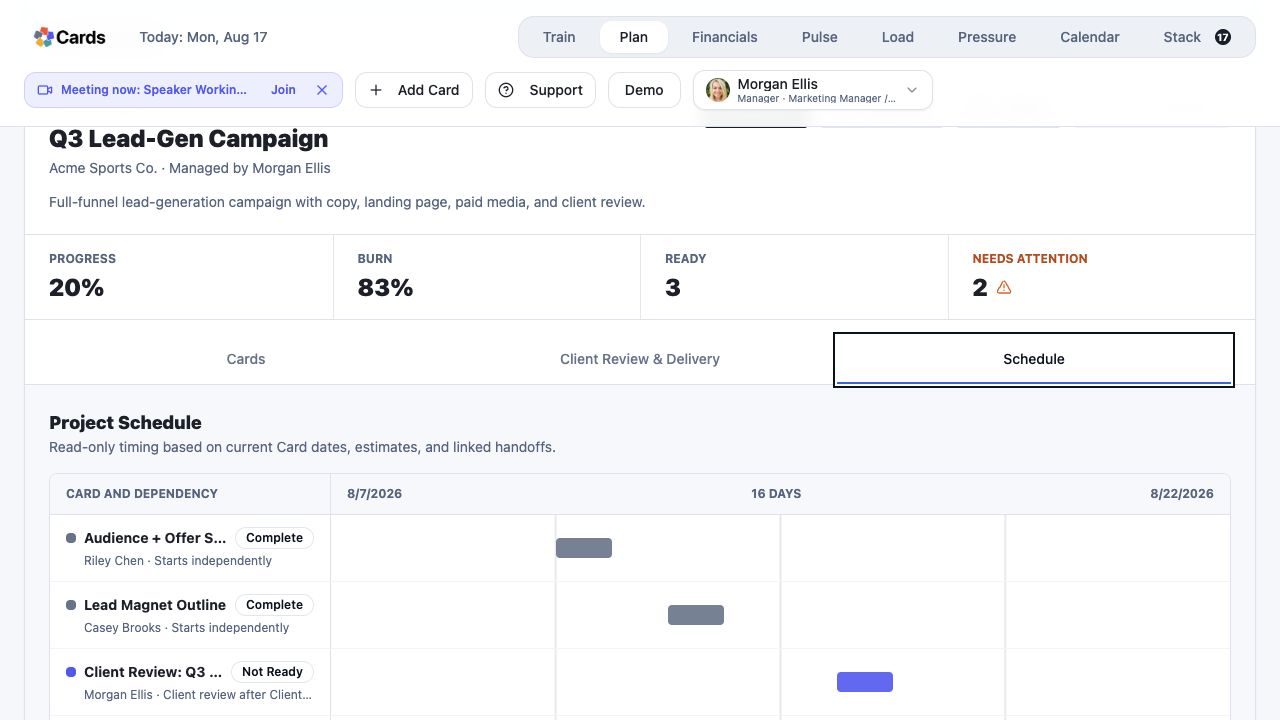 Check readiness, dependencies, and dates in Plan
Step 3 screen focusCheck assignment, team scope, Card readiness, dependencies, and date range. - 04
Reload once and confirm whether another relevant view shows the same state.
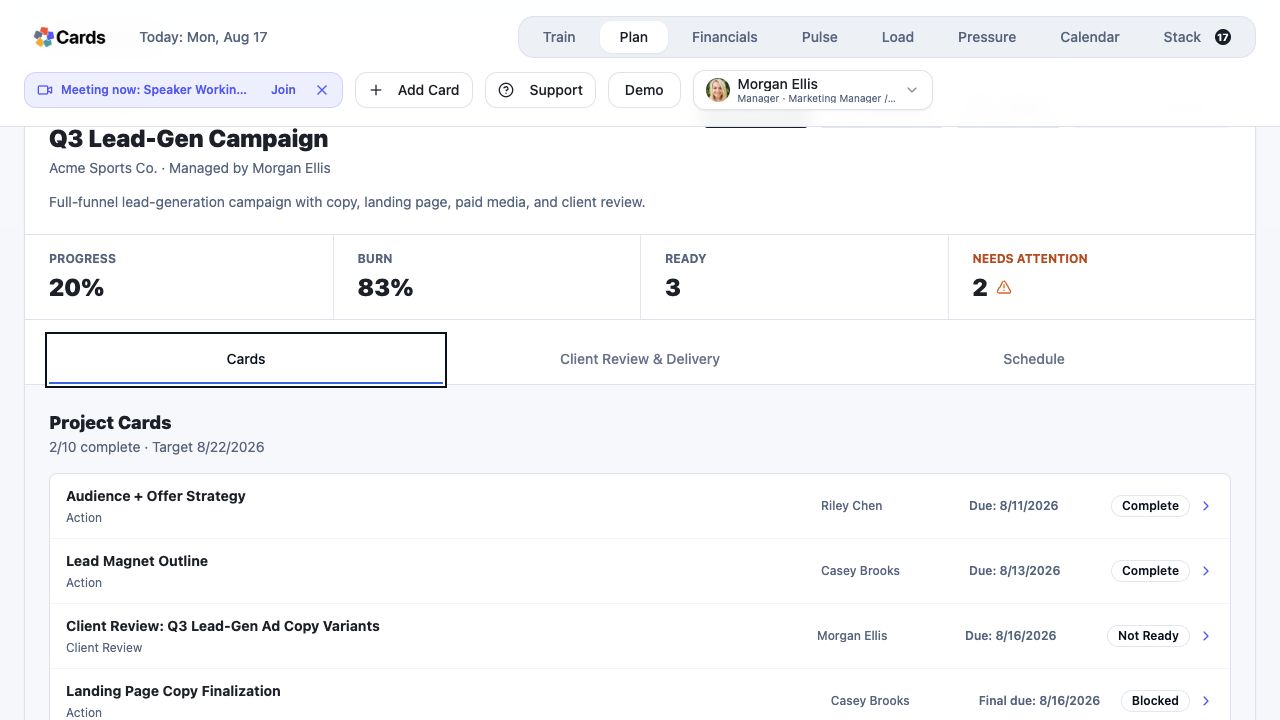 Compare the same work in another Project view
Step 4 screen focusReload once and confirm whether another relevant view shows the same state. - 05
Contact Cards Support with the Project or Card name, expected result, visible result, and time observed.
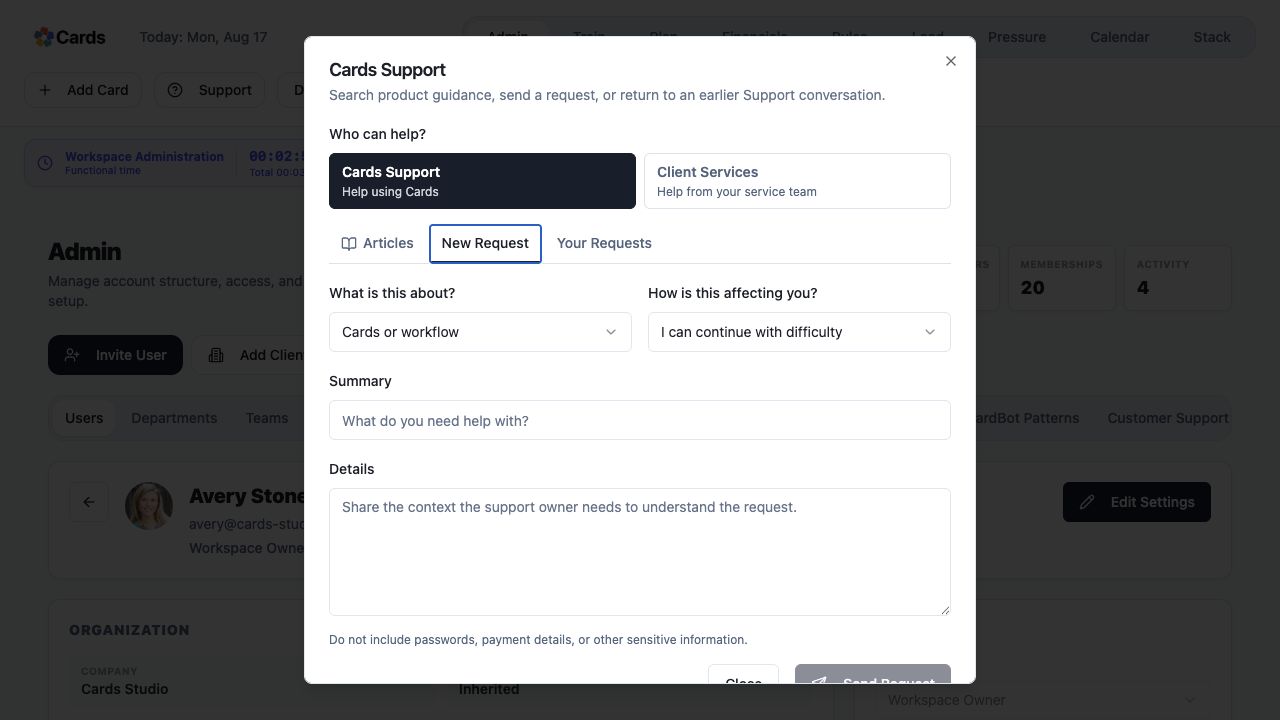 Send the expected and visible result to Support
Step 5 screen focusContact Cards Support with the Project or Card name, expected result, visible result, and time observed.