
How It Works
Follow each step in Cards.
- Do not treat workspace switching as a cosmetic preference.
- Support context and permissions are organization-specific.
- 01
Use the account or workspace switcher to confirm the active organization.
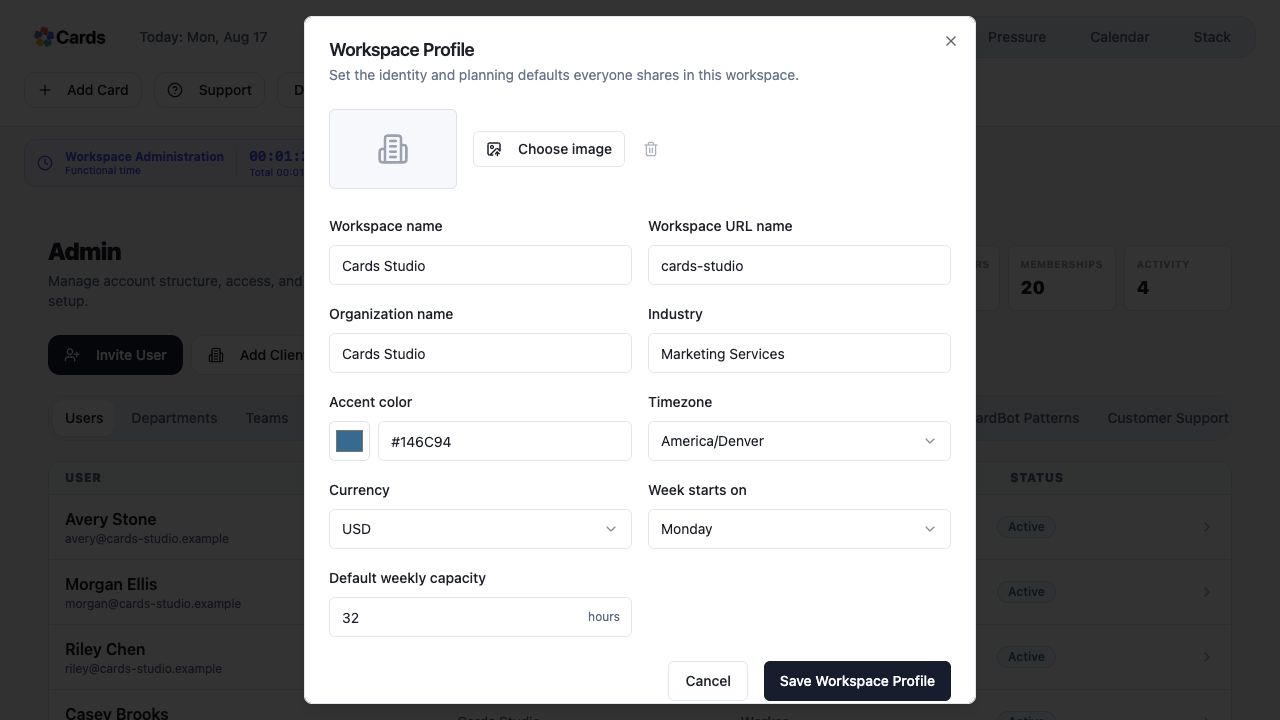 Confirm the active Workspace name and organization
Step 1 screen focusUse the account or workspace switcher to confirm the active organization. - 02
Review the organization’s teams, members, Projects, and settings.
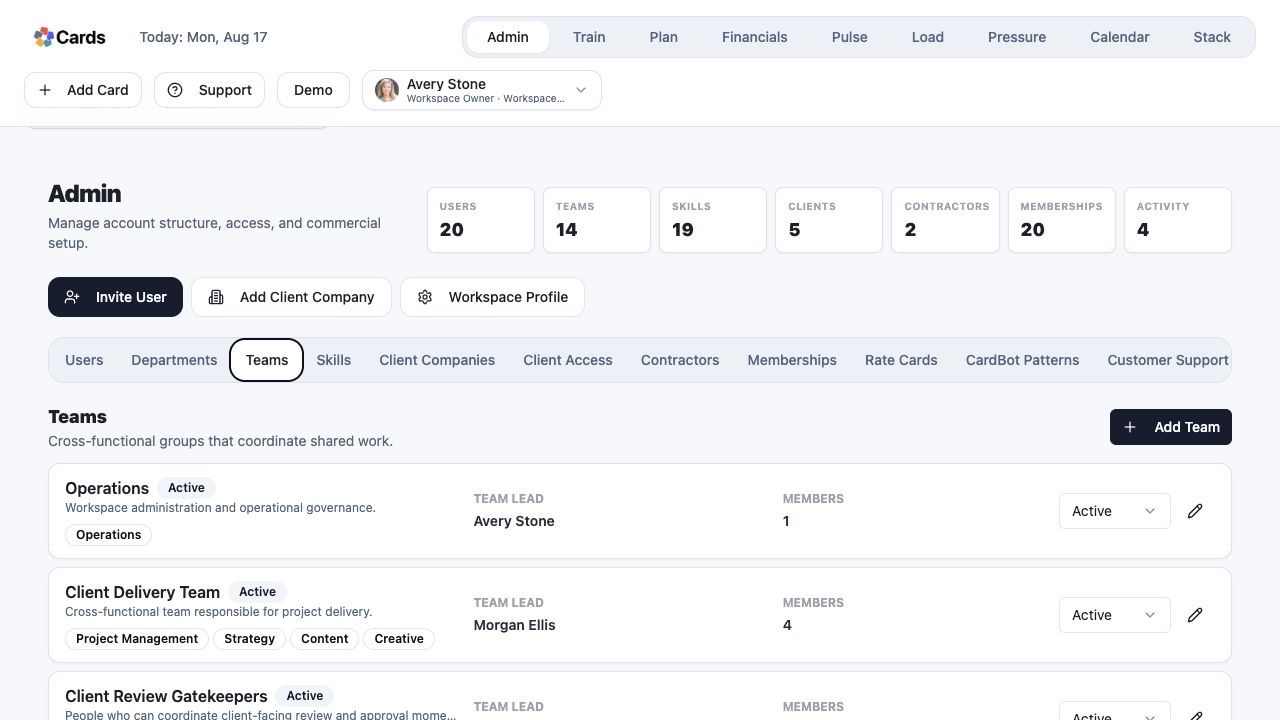 Review the Teams inside this Workspace
Step 2 screen focusReview the organization’s teams, members, Projects, and settings. - 03
Create or configure a separate workspace when work requires a distinct access boundary.
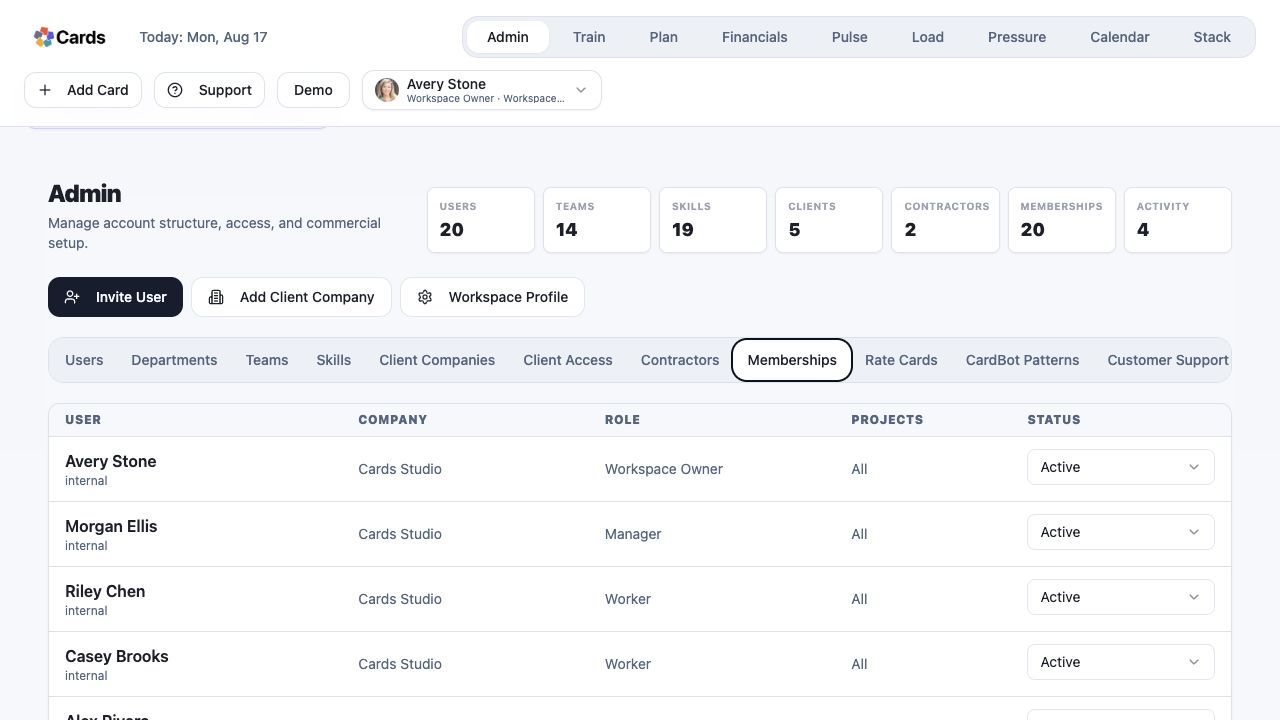 Review people and access inside the boundary
Step 3 screen focusCreate or configure a separate workspace when work requires a distinct access boundary. - 04
Before moving between organizations, save open forms and confirm any active timer.
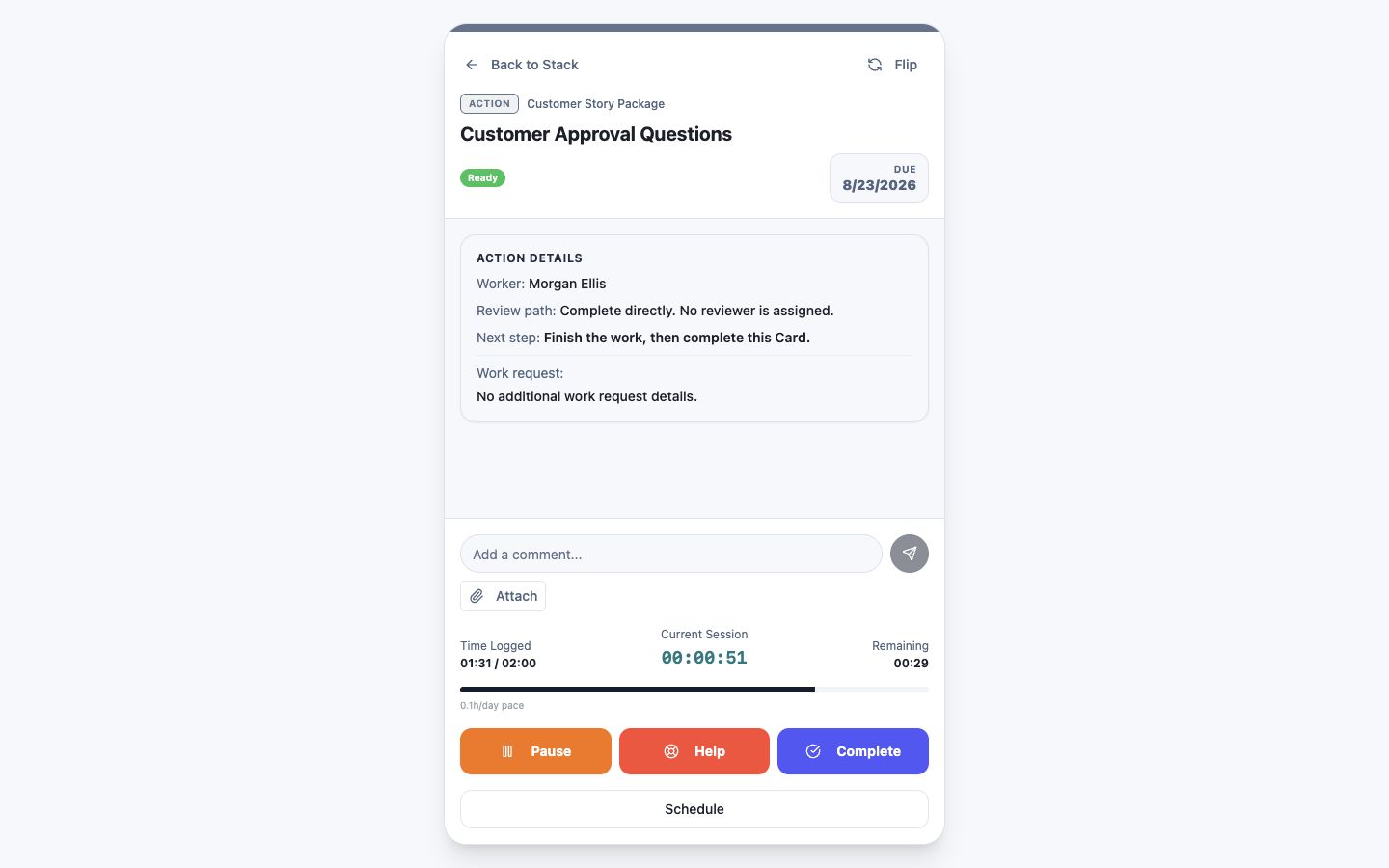 Save open Card work and pause its timer before switching
Step 4 screen focusBefore moving between organizations, save open forms and confirm any active timer. - 05
Verify client and internal visibility after configuration changes.
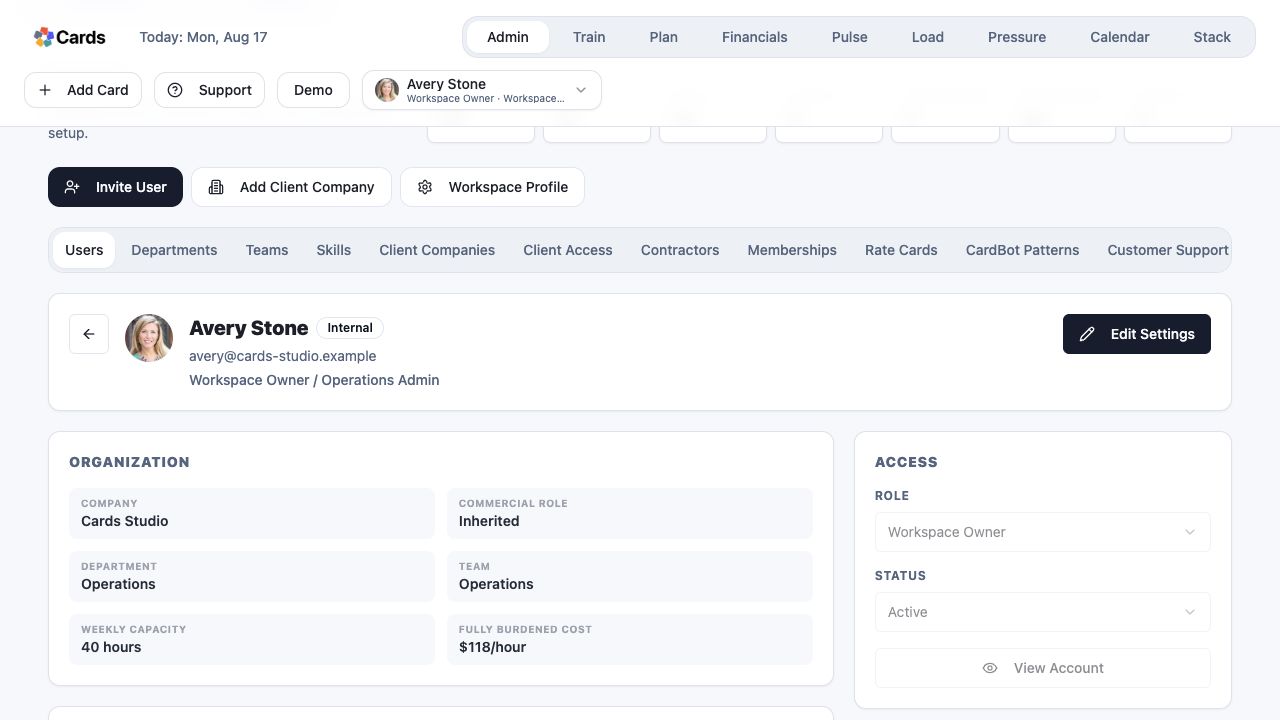 Verify role and access after a Workspace change
Step 5 screen focusVerify client and internal visibility after configuration changes.