
How It Works
Follow each step in Cards.
- A title alone does not grant access.
- Cards Support can diagnose access but should not bypass the organization’s decisions.
- 01
Confirm the selected organization.
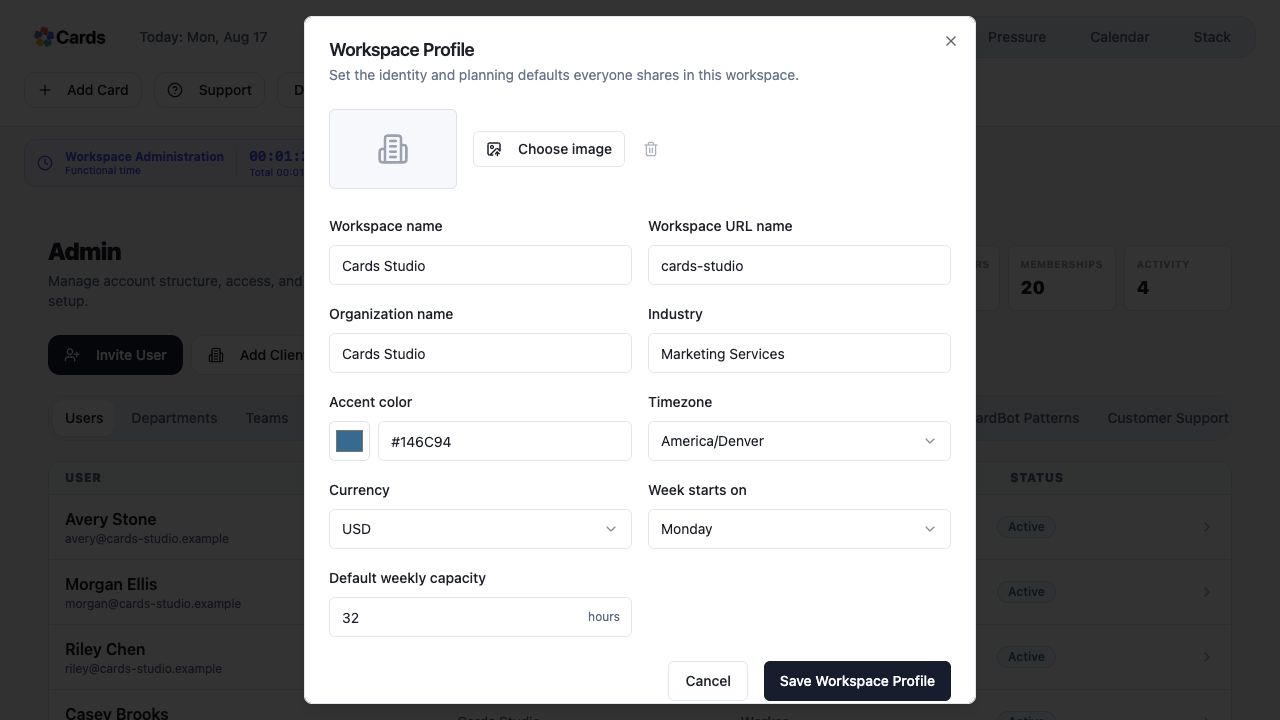 Confirm the active Workspace identity
Step 1 screen focusConfirm the selected organization. - 02
Identify the person’s role, such as Worker, Manager, Client, Admin, or Finance.
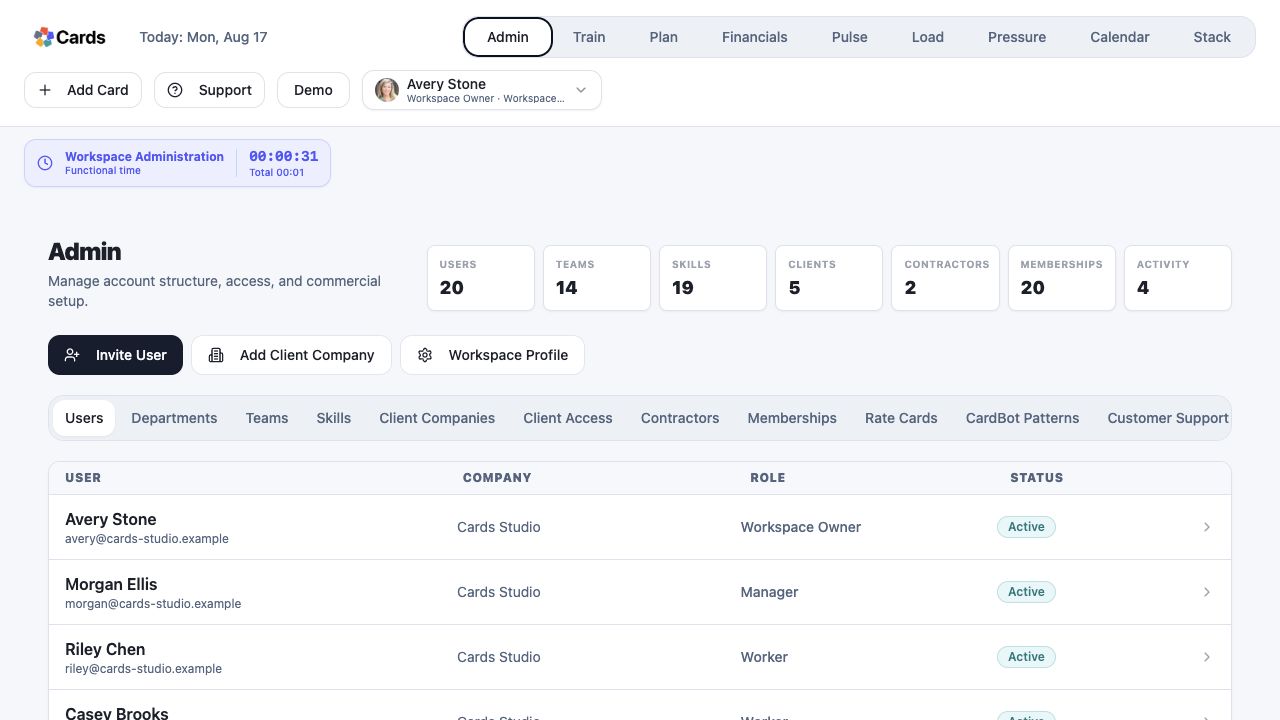 Review the role shown for each user
Step 2 screen focusIdentify the person’s role, such as Worker, Manager, Client, Admin, or Finance. - 03
Review team and Project scope in addition to the role name.
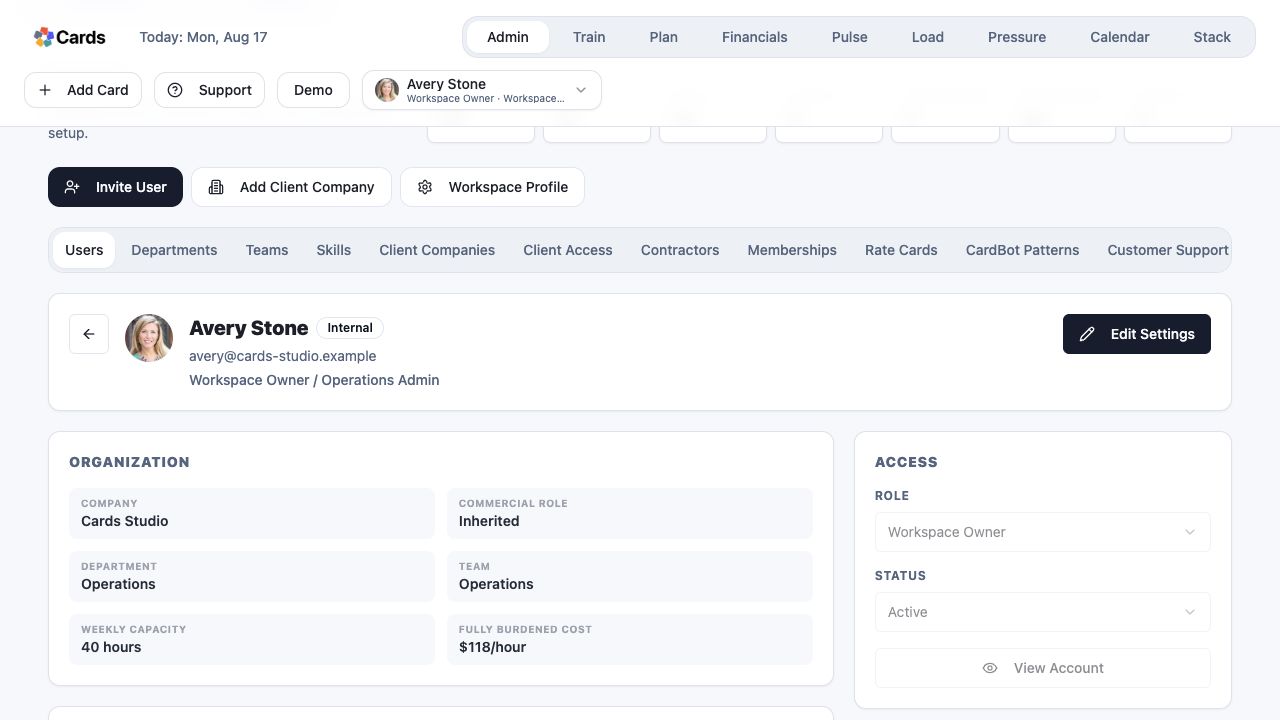 Review organization, Team, capacity, and Access together
Step 3 screen focusReview team and Project scope in addition to the role name. - 04
Check the controls and information visible from the affected account.
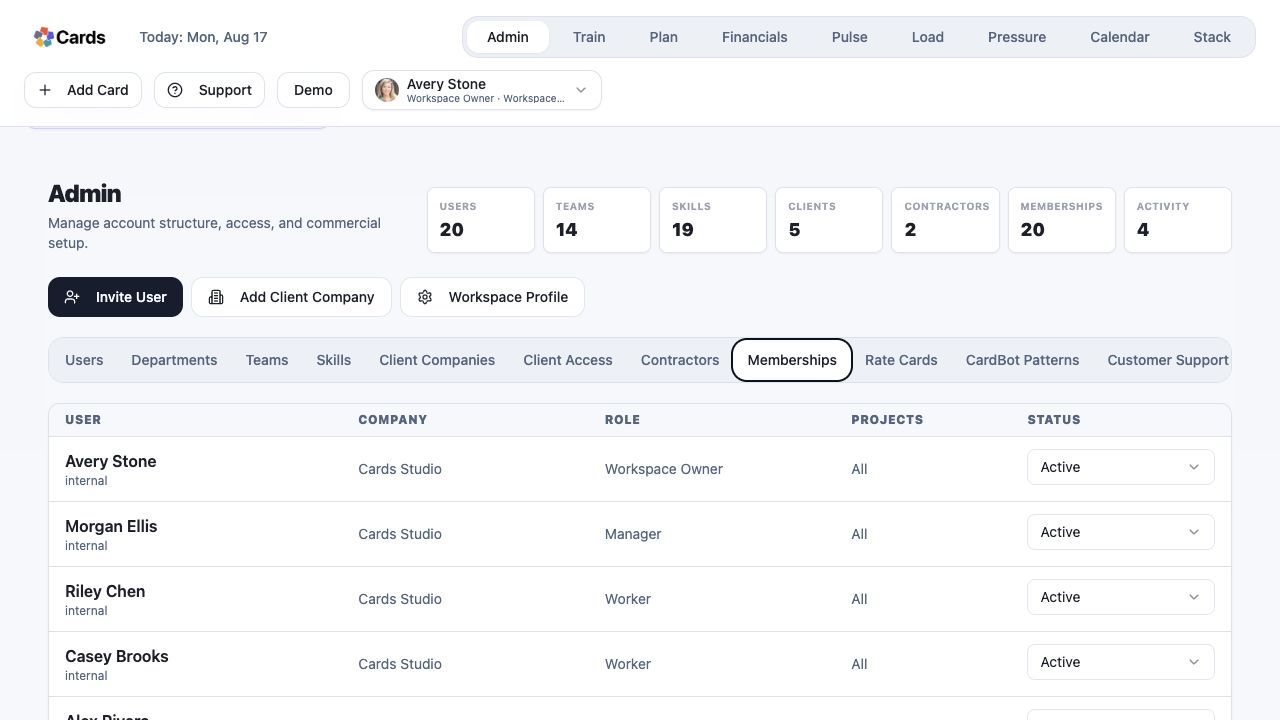 Compare Membership roles and Project scope
Step 4 screen focusCheck the controls and information visible from the affected account. - 05
Ask an authorized Workspace Owner to change access when responsibilities change.
Workspace Owners manage role and status hereStep 5 screen focusAsk an authorized Workspace Owner to change access when responsibilities change.