
How It Works
Follow each step in Cards.
- Never send a password, recovery link, authentication code, or session token.
- Include the visible error text and affected organization in a Support Ticket.
- 01
Confirm you are using the intended email address and official Cards URL.
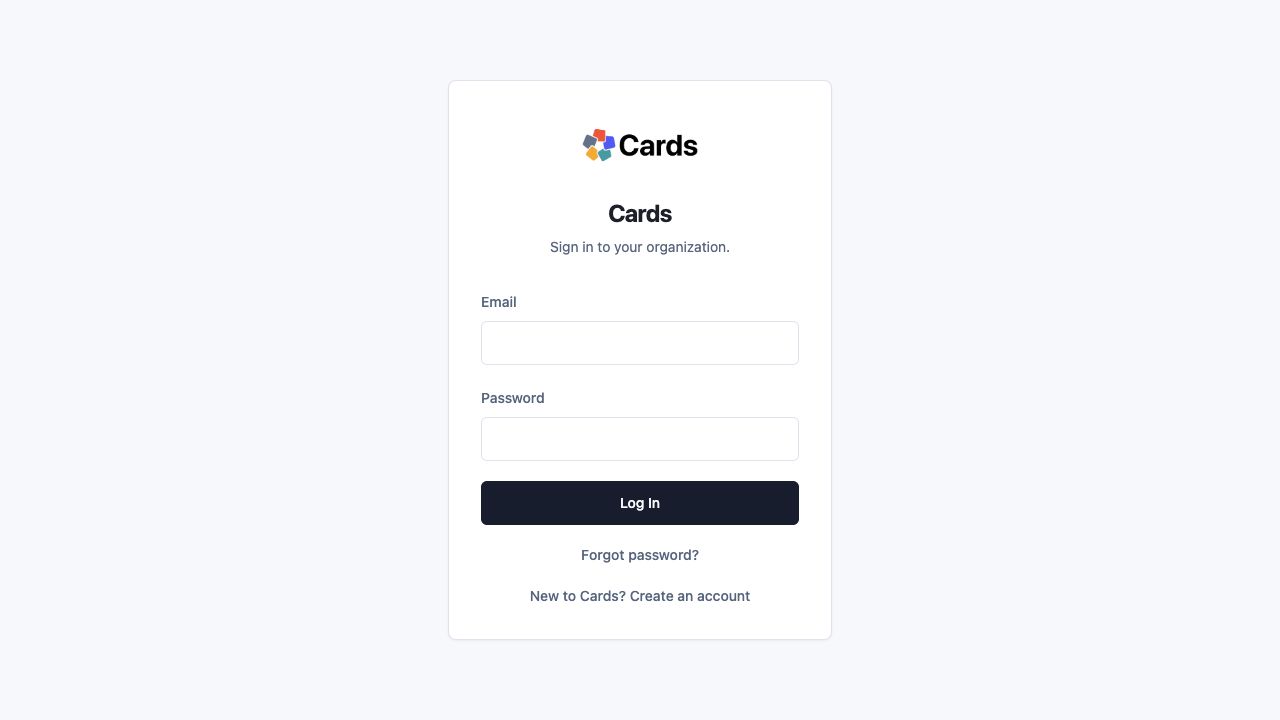 Use the official Cards sign-in screen and intended email
Step 1 screen focusConfirm you are using the intended email address and official Cards URL. - 02
Request a fresh recovery link if an older one was used or expired.
Choose Forgot password? for a fresh recovery linkStep 2 screen focusRequest a fresh recovery link if an older one was used or expired. - 03
Complete authentication in a supported browser and allow the callback to finish.
Complete sign-in in the supported browserStep 3 screen focusComplete authentication in a supported browser and allow the callback to finish. - 04
Confirm the selected organization after sign-in.
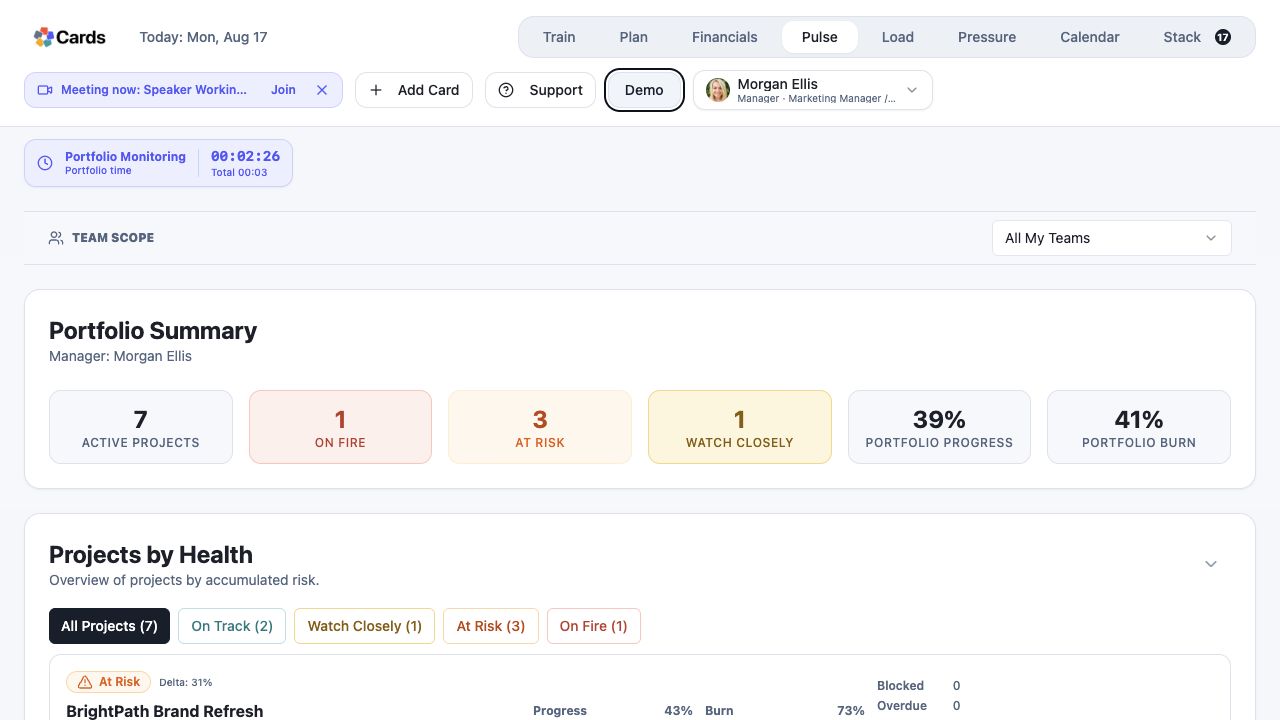 Confirm the account and workspace context after sign-in
Step 4 screen focusConfirm the selected organization after sign-in. - 05
Ask an Admin to verify active membership and role, then contact Cards Support if the issue continues.
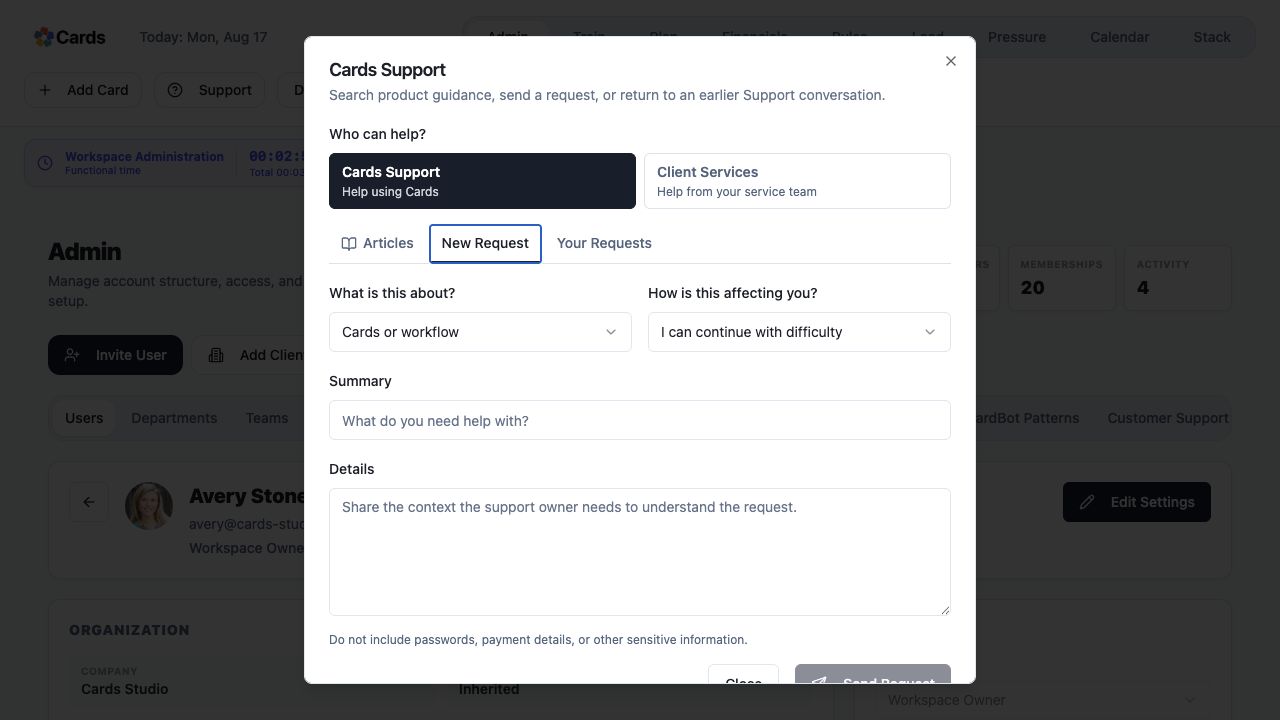 Create a Support request if access still fails
Step 5 screen focusAsk an Admin to verify active membership and role, then contact Cards Support if the issue continues.