
How It Works
Follow each step in Cards.
- Cards may show different navigation and data in each organization.
- If an expected workspace is missing, ask its Admin to verify membership.
- 01
Finish or save the form or decision currently open.
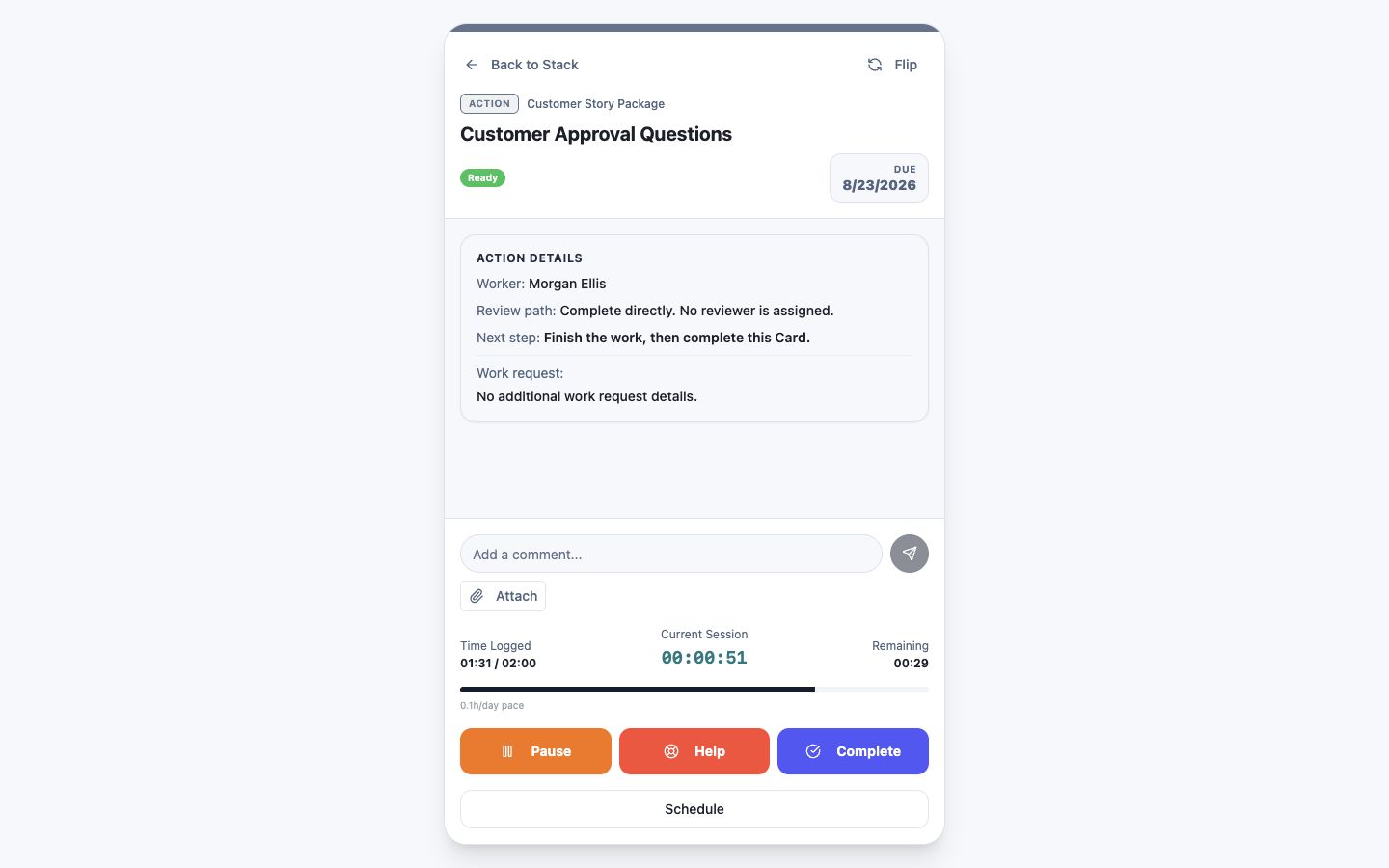 Save the current Card and pause active work
Step 1 screen focusFinish or save the form or decision currently open. - 02
Open the organization or workspace switcher.
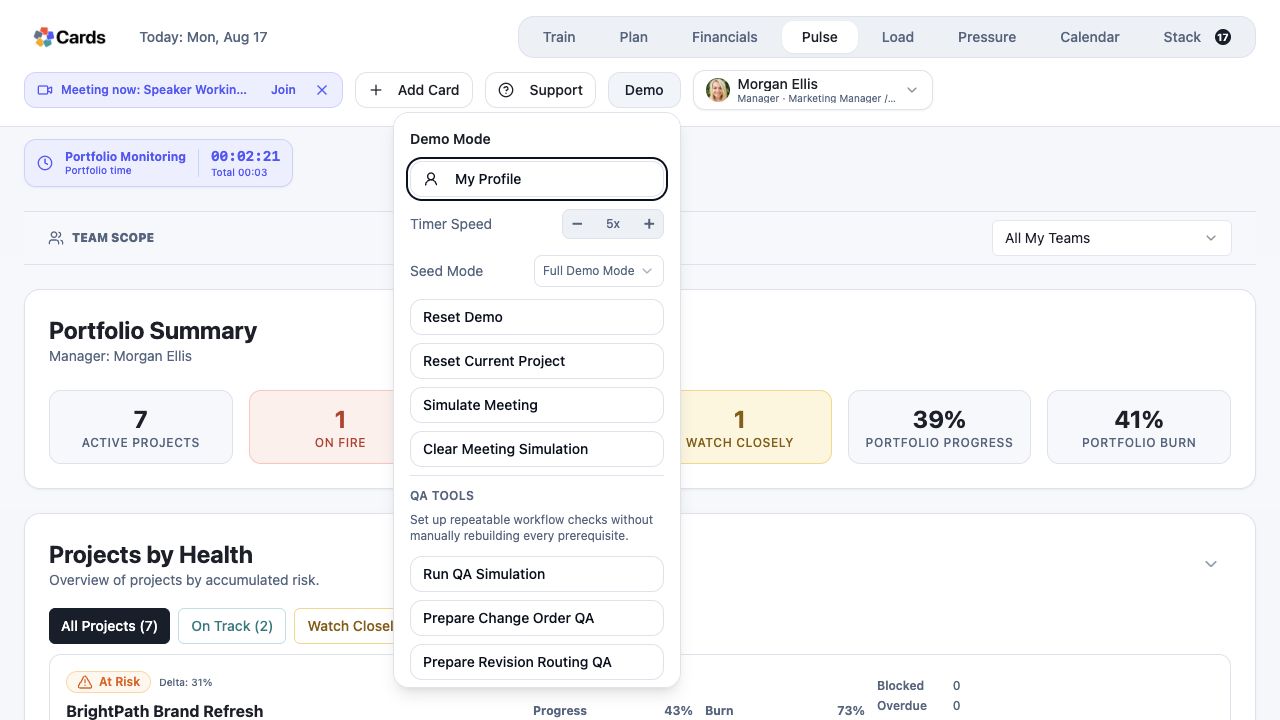 Open the account controls
Step 2 screen focusOpen the organization or workspace switcher. - 03
Choose the intended organization and wait for Cards to load its workspace.
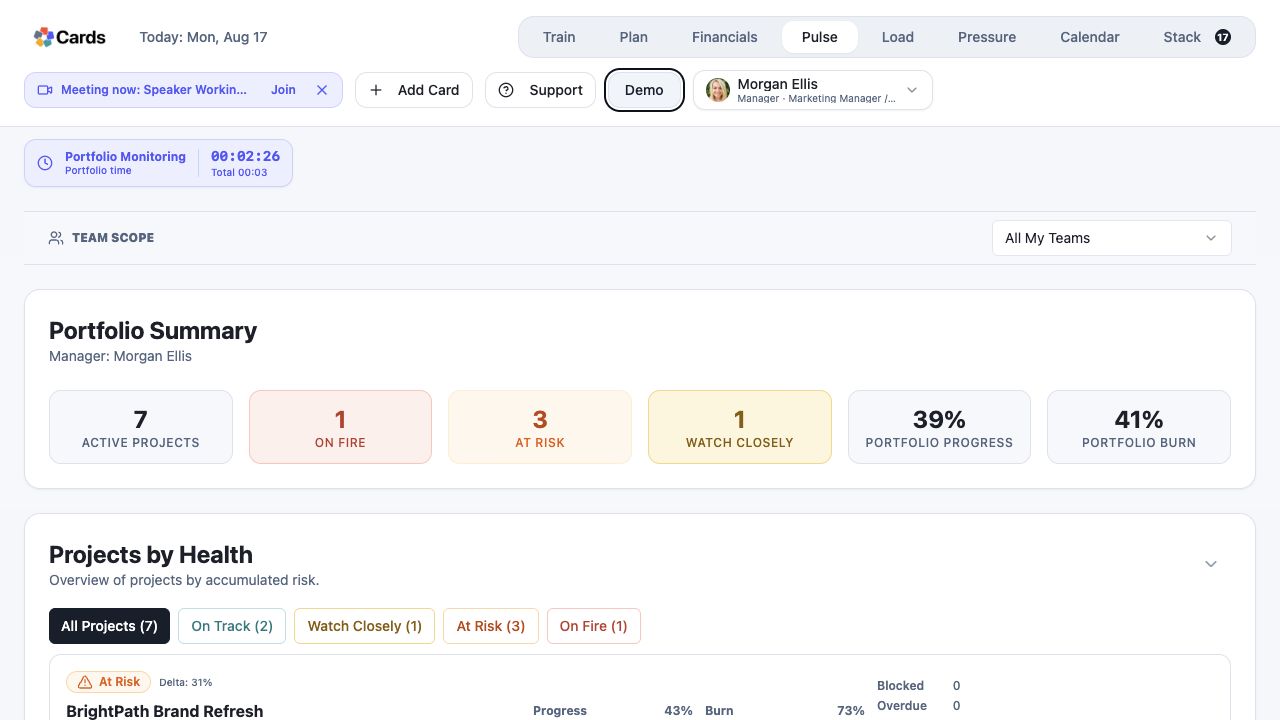 Choose and confirm the intended workspace context
Step 3 screen focusChoose the intended organization and wait for Cards to load its workspace. - 04
Confirm the organization name, your role, and the Projects now visible.
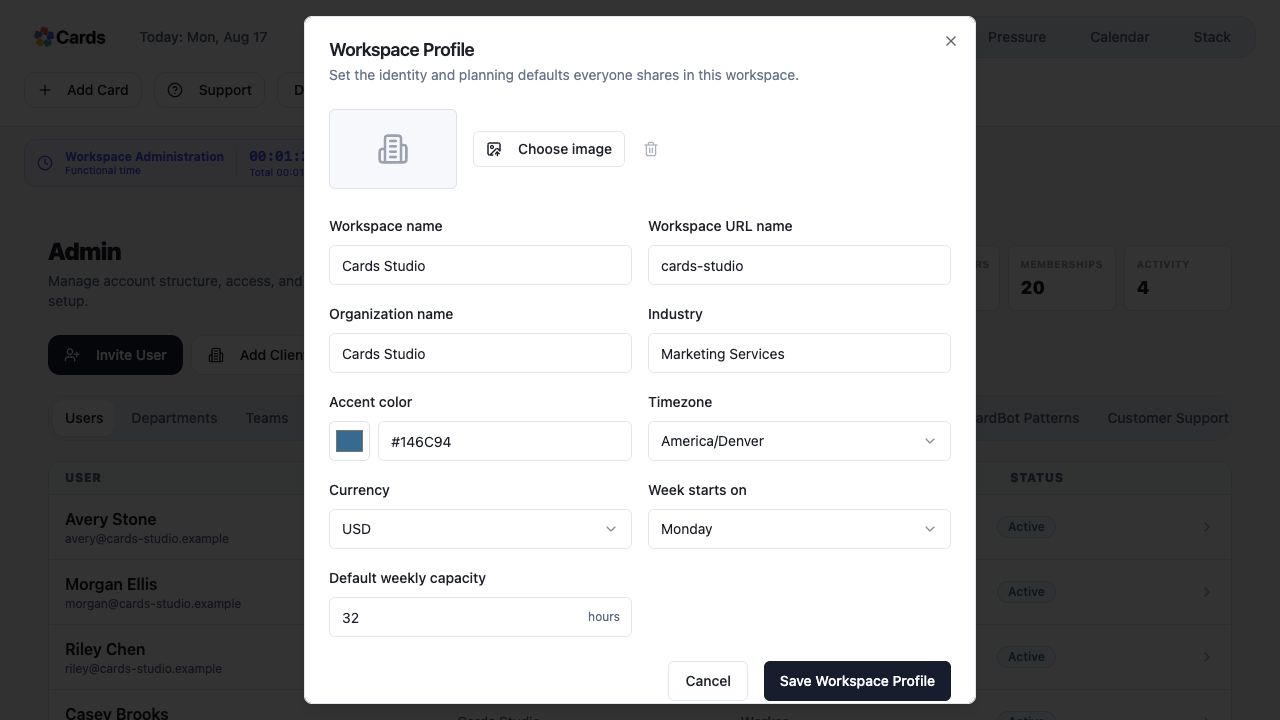 Confirm the loaded Workspace identity
Step 4 screen focusConfirm the organization name, your role, and the Projects now visible. - 05
If a timer was active, confirm it remains connected to the correct Card before starting different work.
Confirm any active timer remains with the correct CardStep 5 screen focusIf a timer was active, confirm it remains connected to the correct Card before starting different work.