
How It Works
Follow each step in Cards.
- A missing Card may be waiting on a predecessor, assigned elsewhere, or outside your team scope.
- Stack is an action surface, not a manually maintained to-do list.
- 01
Select Stack from the primary navigation.
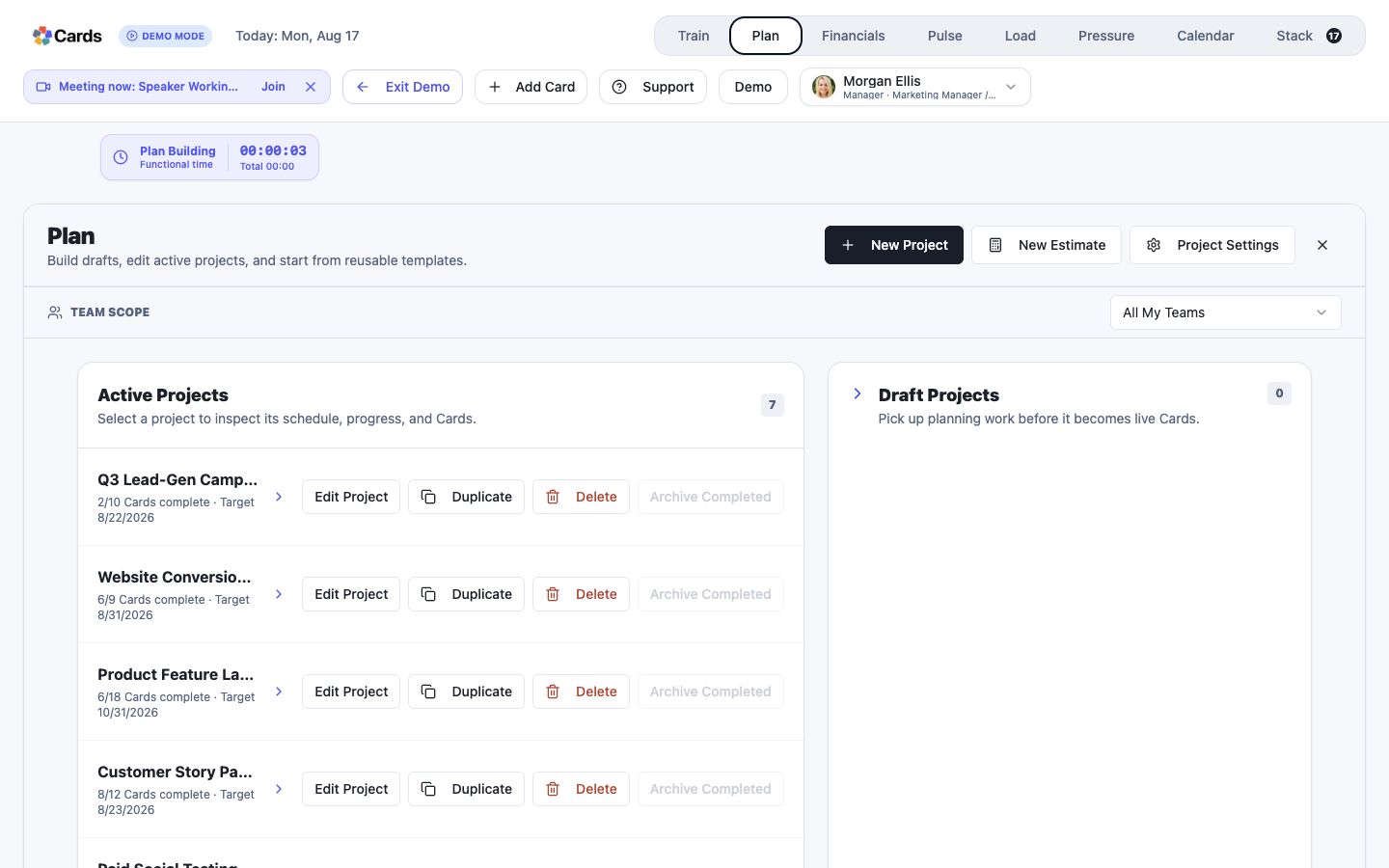 Select Stack
Step 1 screen focusSelect Stack from the primary navigation. - 02
Use the readiness and Project filters to narrow the work you need to see.
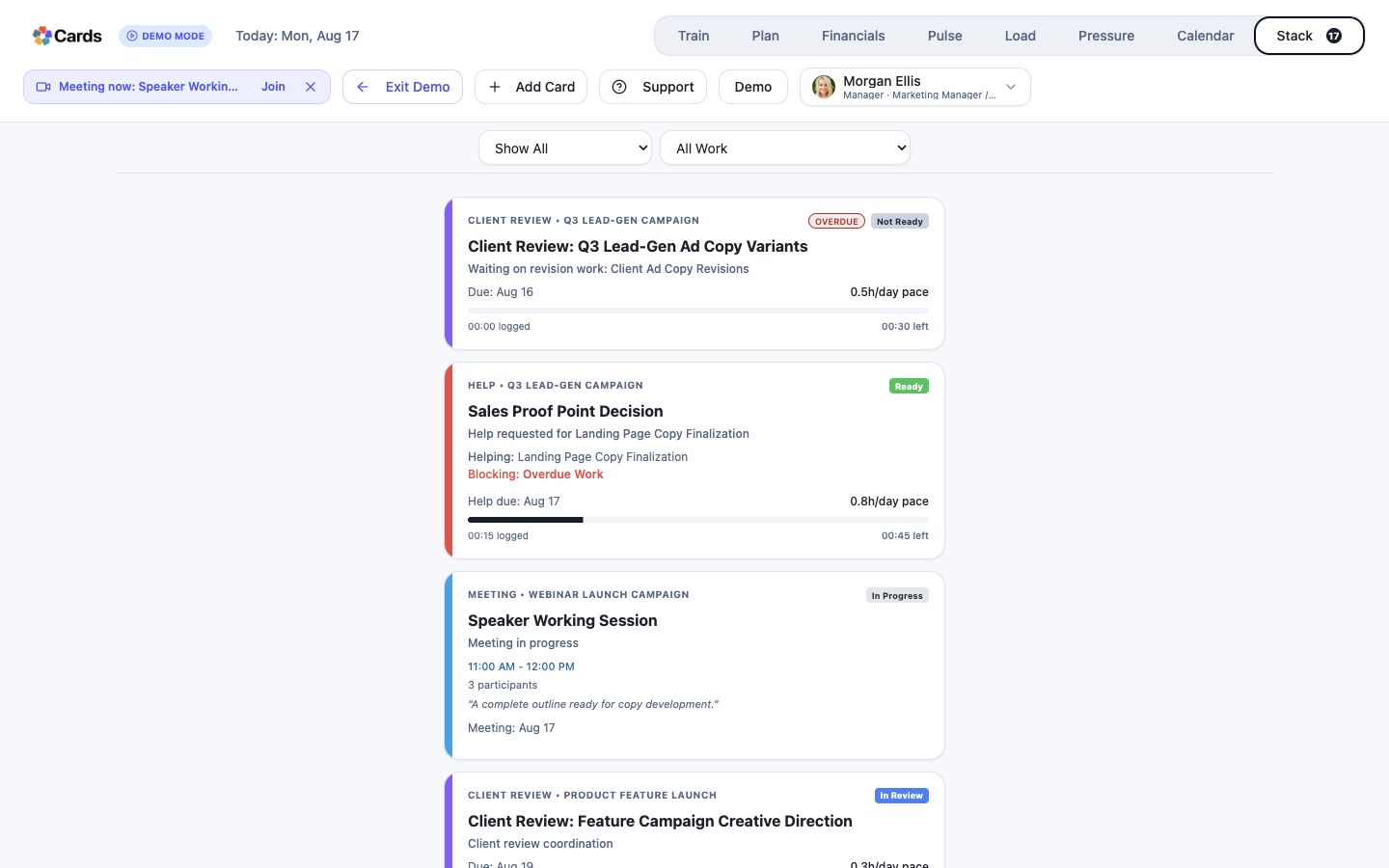 Choose readiness and Project filters
Step 2 screen focusUse the readiness and Project filters to narrow the work you need to see. - 03
Select the highest relevant Card to open its details.
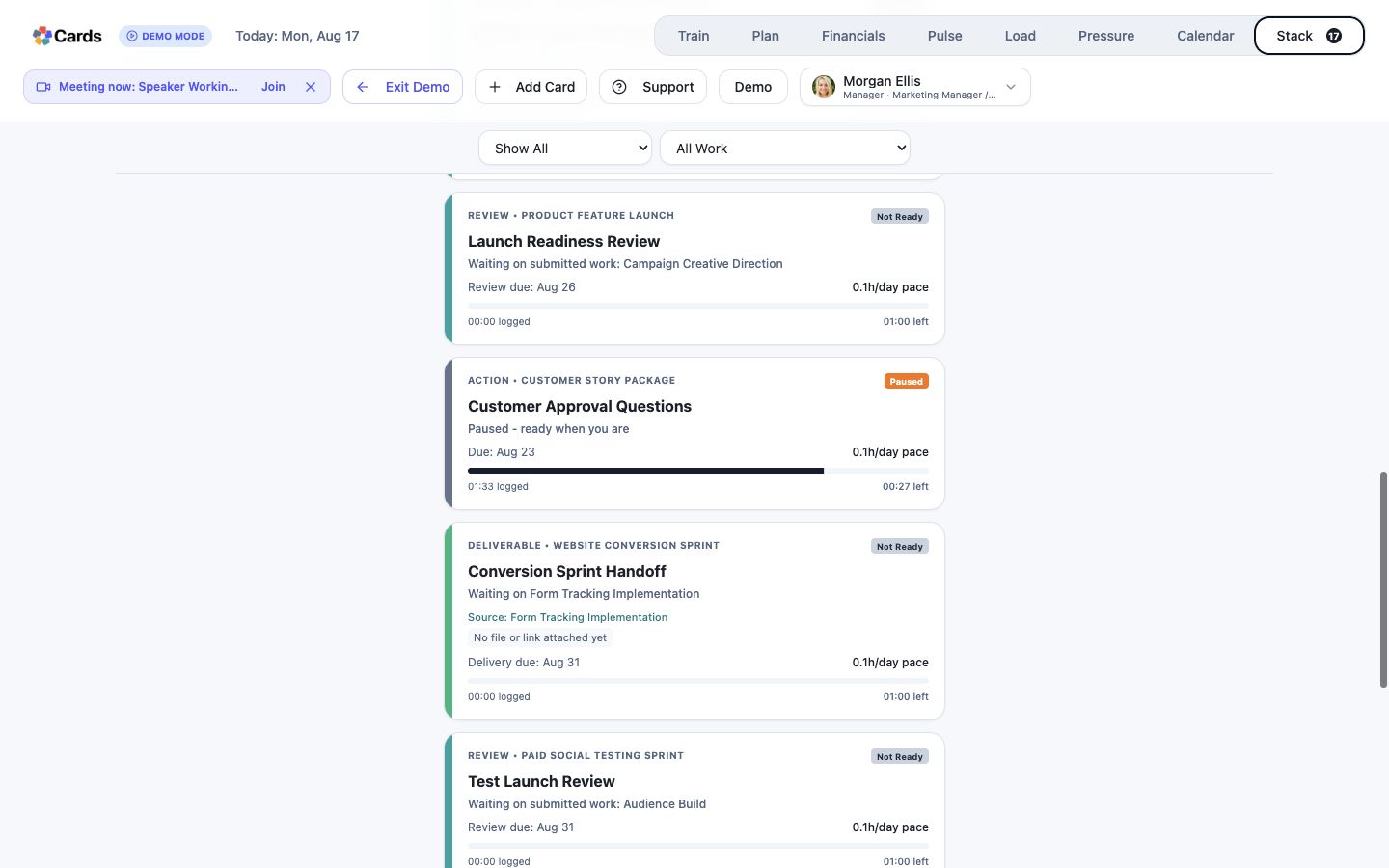 Open a Card
Step 3 screen focusSelect the highest relevant Card to open its details. - 04
When the Card opens, confirm the Current Session timer is running. Use Pause when you stop working on that Card.
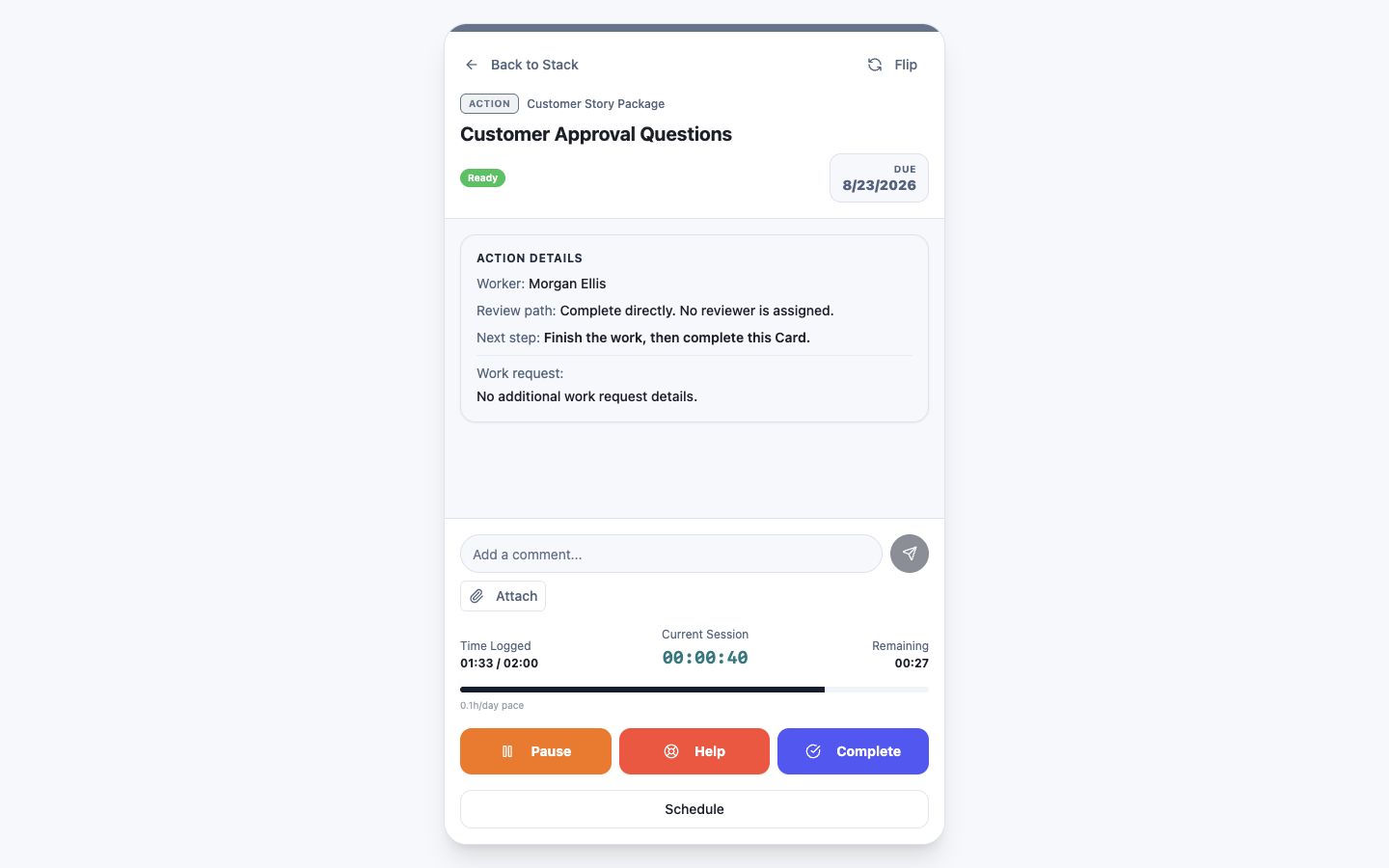 Timer running — Pause stops the session
Step 4 screen focusWhen the Card opens, confirm the Current Session timer is running. Use Pause when you stop working on that Card.